
Integration of Hoymiles Inverter with Trydan

The Trydan is compatible with the Hoymiles residential storage hybrid inverters that have the communication ports PARA1 / PARA2. Communication is established via RS485 Modbus RTU, with a direct cable between the Trydan and the inverter.
Once connected, the Trydan will always know the photovoltaic production and will use that energy to charge your electric vehicle.

Warning: opening the charger or the inverter, and any work inside, can only be done by authorized installers with the equipment de-energized.
Compatibility
The Trydan communicates with the Hoymiles inverter via RS485 cable, using the Modbus RTU protocol. Below are the key aspects of the integration:
| Aspect | Detail |
|---|---|
| Compatible inverters | Hoymiles residential storage hybrids with PARA1 / PARA2 ports |
| Protocol | RS485 Modbus RTU |
| Inverter port | PARA2 (do not use METER or BMS) |
| Cable | UTP CAT5 or higher, custom-made; only 2 wires are used |
| Communication speed | 9600 bps (must be changed in the inverter) |
| Trydan firmware | 2.5.2 or higher |
Before you start: update your Trydan
Integration with Hoymiles is available starting from firmware version 2.5.2 of the charger. If your Trydan has an earlier version, update it to the latest version and also update the V2C Cloud app before proceeding.
Step 1: Wired connection to the Hoymiles inverter
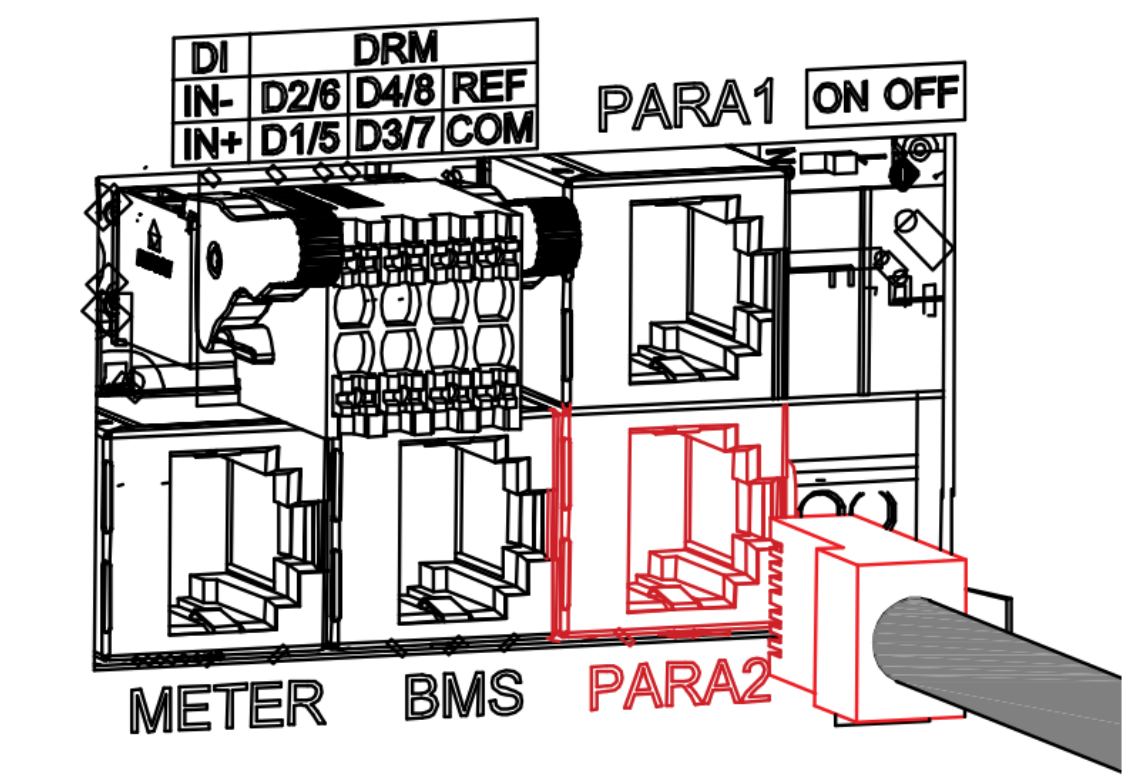
The Trydan connects to the communication port in parallel PARA2 of the inverter, which supports Modbus with third-party equipment.
Important: do not use a standard network cable. The pins do not match on both ends, so the cable is custom-made and only with a pair of wires.
1. Locate the PARA2 port
Locate the PARA2 port on the inverter communication panel.
Do not use the METER or BMS ports.
2. Prepare the cable
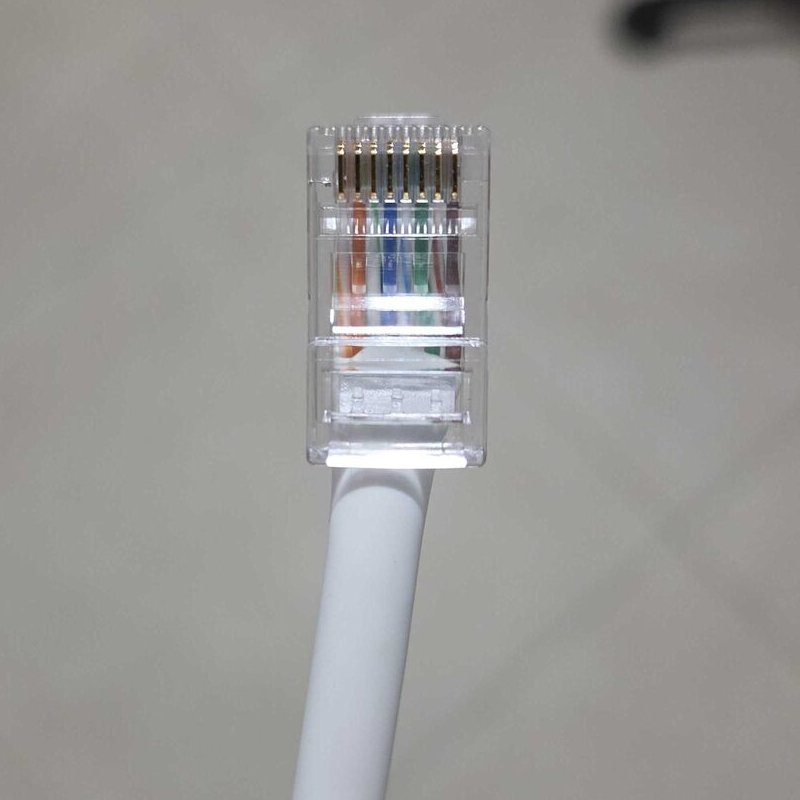
Run a UTP cable (CAT5 or higher) and crimp an RJ45 connector at the inverter end.
Out of the 8 pins of the port, only pin 7 (white/brown, 485B_2) and pin 8 (brown, 485A_2) are used.
| Pin PARA2 | Signal |
|---|---|
| 1 | DI IN+ |
| 2 | DI IN− |
| 3 | CANH |
| 4 | CANL |
| 5 | 485B_1 |
| 6 | 485A_1 |
| 7 | 485B_2 → Trydan |
| 8 | 485A_2 → Trydan |
3. Connect the cable to the Trydan
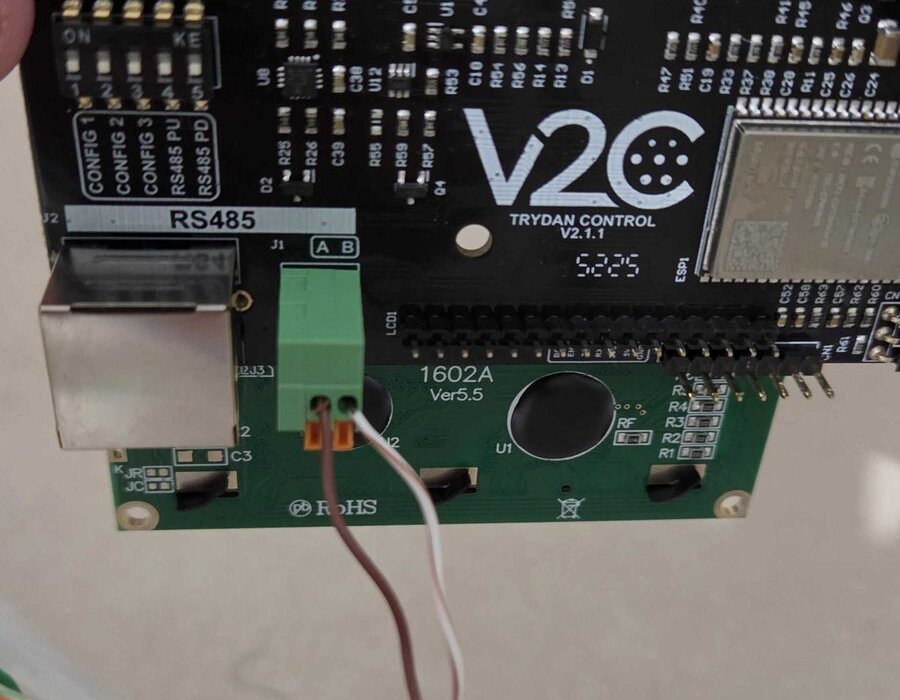
In the Trydan, connect the brown wire (pin 8) to terminal A and the white/brown wire (pin 7) to terminal B of the J1 terminal block on the control board (chargers manufactured since mid-2024).
If you use the RJ45 connector on the board (J2), connect pin 5 as A and pin 4 as B.
4. Connect the cable to the inverter
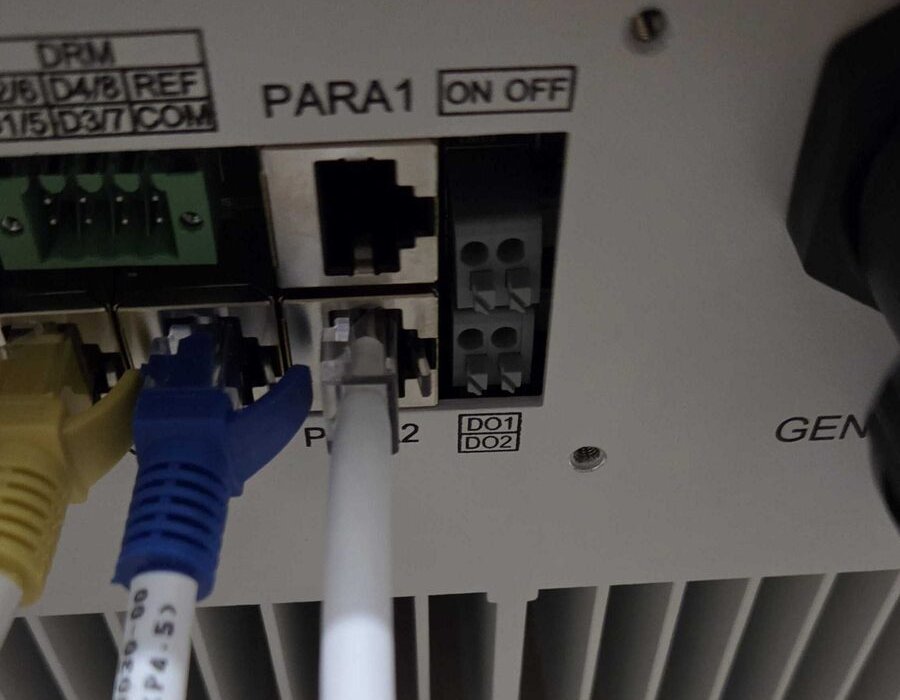
Connect the RJ45 to the PARA2 port of the inverter.
Physical wiring and pin assignment (pinout)
| Hoymiles Inverter End (RJ45 PARA2) | RS485 Signal | Trydan End (terminals / RJ45) |
|---|---|---|
| Pin 8 (brown) | RS485 A (+) | Terminal A / RJ45 pin 5 |
| Pin 7 (white/brown) | RS485 B (−) | Terminal B / RJ45 pin 4 |
Watch the order: in the Hoymiles, line A is on pin 8 and line B is on pin 7, unlike in other inverters.
Step 2: Hoymiles Inverter Setup
The inverter comes from the factory at 115200 bps and the Trydan communicates at 9600 bps, so the RS485 port speed of the inverter needs to be changed. The rest of the parameters are left as they come from the factory.
| Parameter | Factory | For the Trydan |
|---|---|---|
| Modbus Address | 1 | 1 |
| Speed | 115200 bps | 9600 bps |
| Data Bits | 8 | 8 |
| Parity | None | None |
| Stop Bits | 1 | 1 |
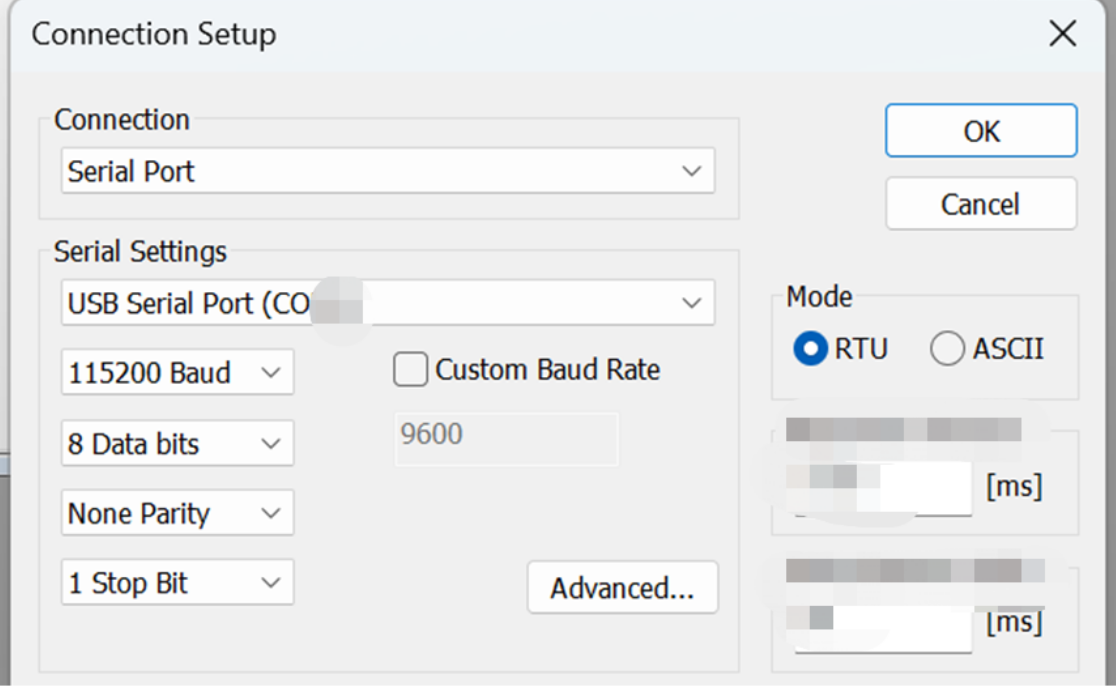
Critical parameter: if the inverter is not set to 9600 bps, the Trydan will not receive data even if the wiring is correct.
Step 3: Configuration in the V2C Cloud app
- Access the V2C Cloud app, select your Trydan, and go to its settings.
- Enter Dynamic Power Control (DPC).
- Set Device Type: Inverter.
- Select the inverter in Brand / Protocol: Hoymiles (RS485). (if it doesn’t appear, update the V2C app to the latest version)
- Save the configuration. Without this step, the Trydan will not manage the available power correctly.
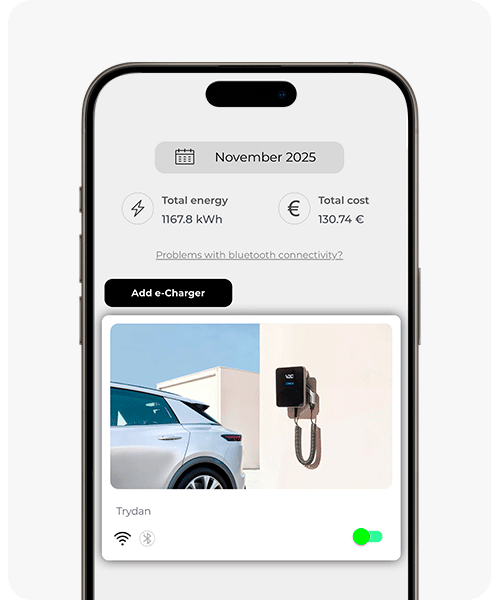
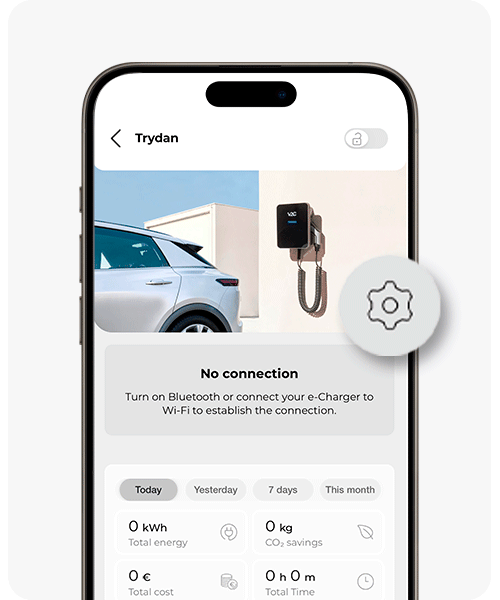
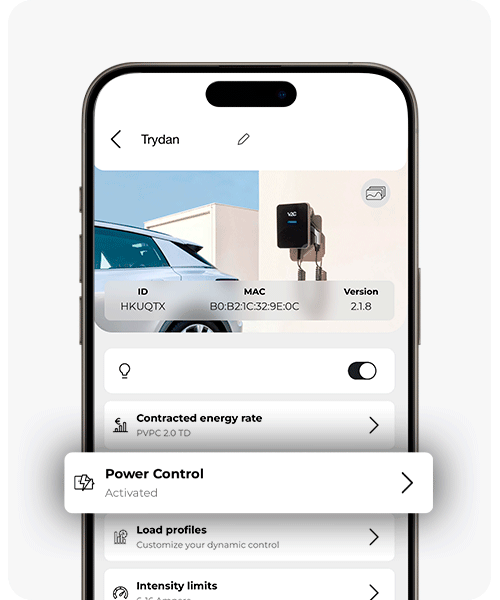
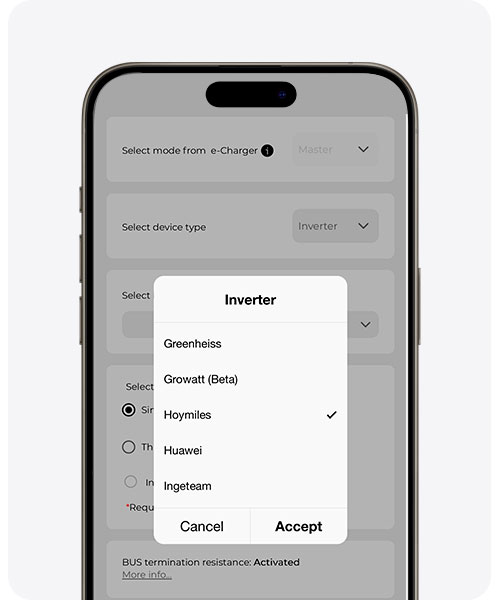
If you do not yet have an account in V2C Cloud or have questions about how the app works, you can consult this V2C Cloud setup guide.
Step 4: Check that it works
After a few minutes, enter the V2C app again and check that the Trydan is displaying energy data (house consumption, solar production, etc.). If you connect the car, it should start charging by prioritizing the solar surplus according to the configuration you have chosen.
If something is not working
- Check the inverter speed. It should be at 9600 bps; with the factory value (115200 bps) the Trydan does not receive data.
- Check the order of the wires. In the Hoymiles, A is pin 8 and B is pin 7. If they are reversed, there will be no communication.
- Check the port. The cable must go to the PARA2 port, not to METER or BMS.
- Do not use a standard network cable. The cable is custom-made, using only the two wires of the RS485.
For optimal operation, update the charger firmware and the V2C Cloud app to their latest available versions.
Do you need technical support?
Resolve your issue instantly through our AI Chat. If it is not resolved, generate a request in the Technical Support Center and we will contact you as soon as possible to provide you with the best solution.