
Integration of the Solis inverter with Trydan

The Trydan charging point is compatible with the entire range of Solis inverters. The installation of the Solis inverters is done through RS485 Modbus communication. The connection must be made via cable directly to the inverter, and cannot be done without it (via WiFi), which makes its configuration more stable.
Two ways to make the wired connection depending on the model
The Trydan charging point supports two types of wired connection with Solis inverters: the generic procedure, applicable to the entire range, or the specific procedure if your inverter is the hybrid model Solis S6-EH1P6K-L-PLUS.

Generic Solis Inverters:
Steps for wired connection to the Solis inverter
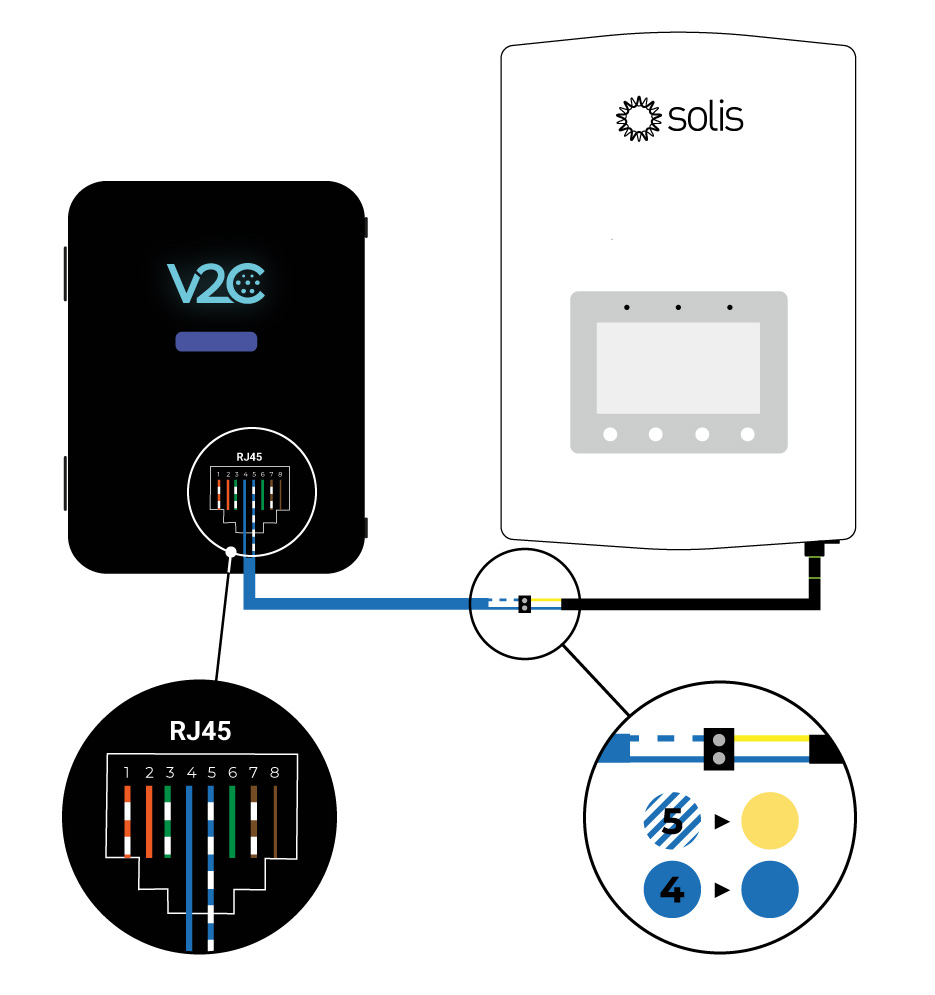
For RS485 Modbus communication to be possible in this case, a special connector provided by the manufacturer/distributor and a UTP cable are involved. Both cables will be connected according to the diagram in step 2, and the one connected to the e-Charger Trydan will have a correctly crimped RJ-45 connector as shown in the diagram in step 4.

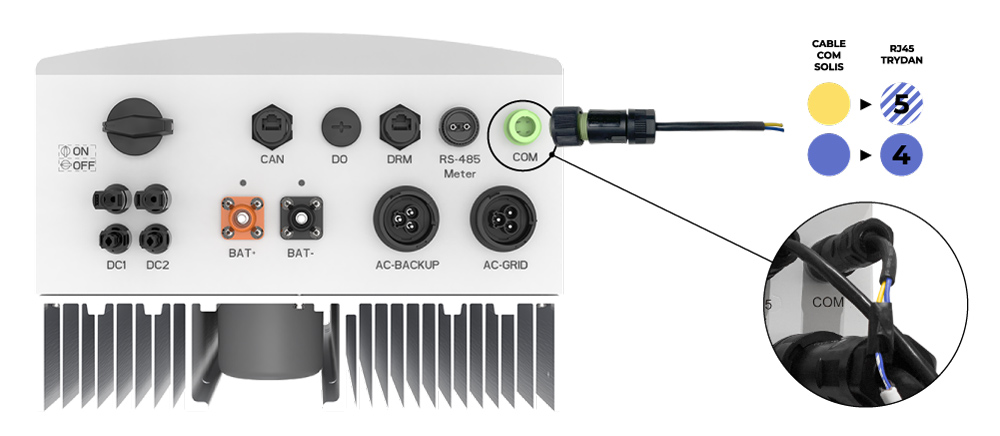
First, connect the cable shown in the following image included with the product to the port (COM CABLE) of the inverter. If it is not included, ask the distributor to establish the RS485 Modbus communication.
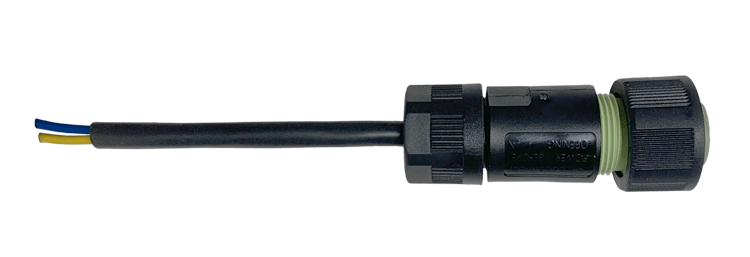

The special connector has two wire strands belonging to RS485-A (Yellow color) which will be connected to pin 5 of the RJ-45 and the connections of RS485-B (Blue color) which will be connected to pin 4 of the RJ-45.

Once connected to the inverter, it sends a two-wire supply to the charging point. To achieve this, it is recommended to use a UTP cable finished with an RJ-45 connector, only a pair of wires is necessary to minimize losses and facilitate the connection. The crimping of the RJ-45 connector must be done following the scheme shown below: pin 4 (blue wire – RJ-45 Trydan) connects to pin B (blue wire – special connector), and pin 5 (white/blue wire – RJ-45 Trydan) connects to pin A (yellow wire – special connector).
Trydan RJ-45 Connector
| 1 | 2 | 3 | 4 | 5 | 6 | 7 | 8 |
| A | B |
Special connector

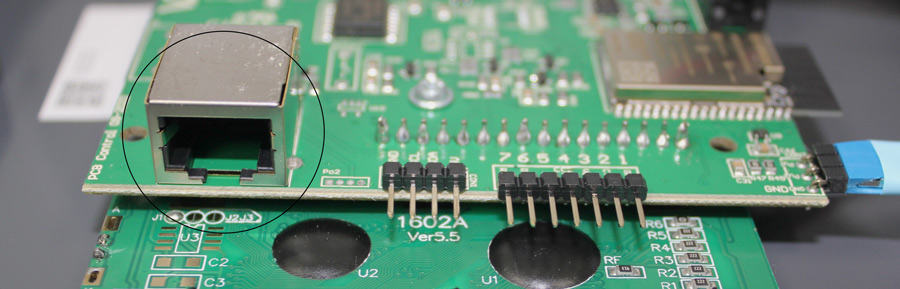
The RJ-45 connector must be connected to Trydan via the RS485 input located on the cover.
Configuration of the Solis inverter in the V2C Cloud App
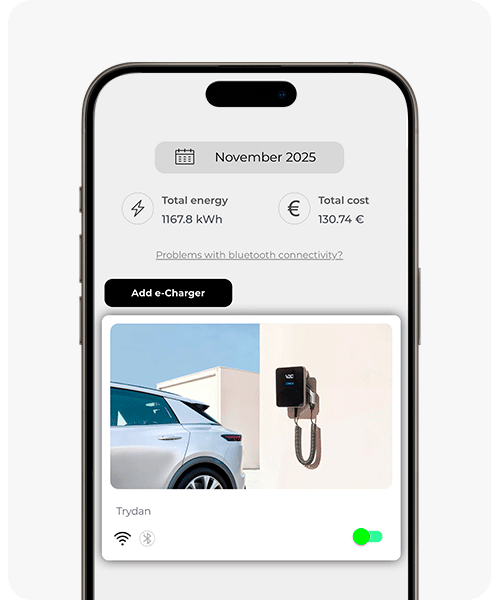
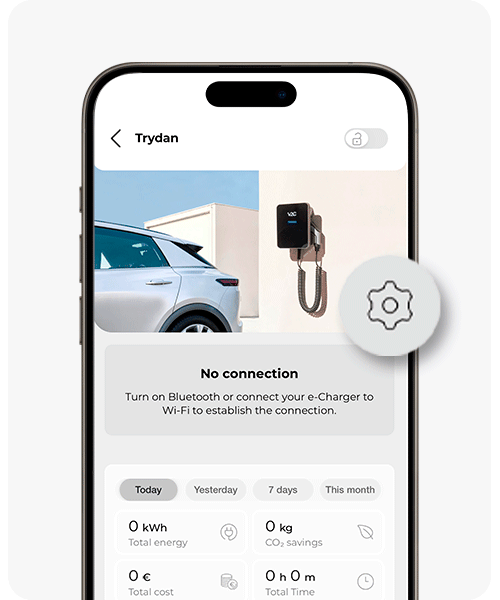
Access the V2C Cloud application, choose the charging point, and go to the configuration section.
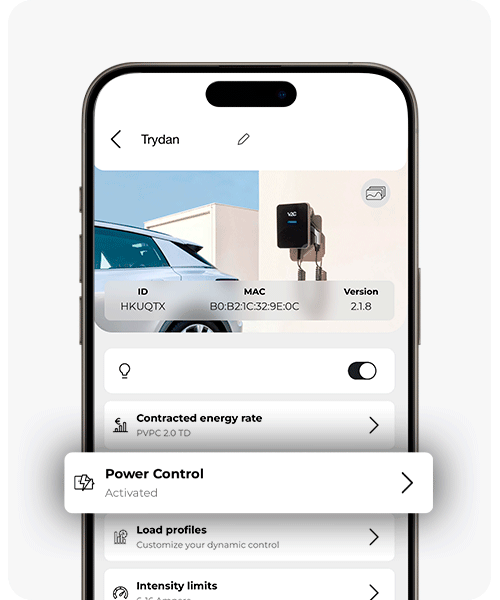
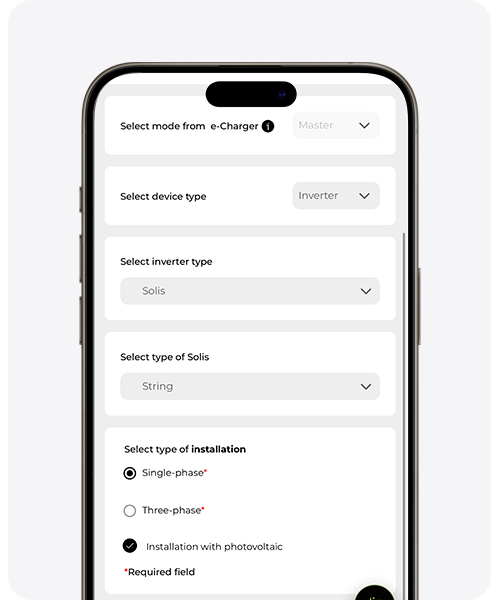
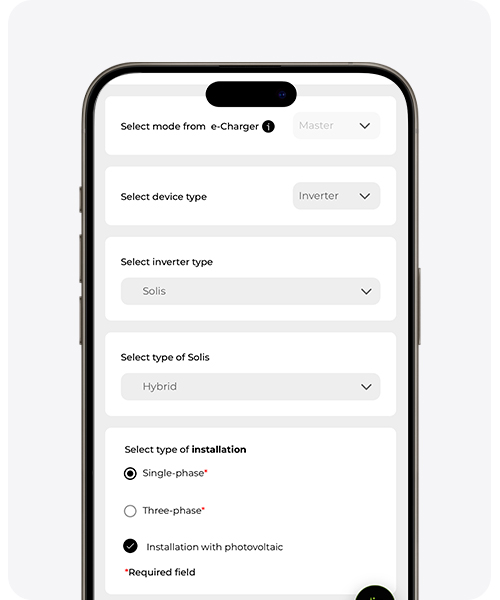
Enter dynamic power control and select inverter in the ‘device type’ tab. Select Solis in the ‘inverter type’ section and the appropriate installation for each situation.
It is essential to save the configuration to ensure the proper functioning of dynamic power control.
Once configured correctly, you can customize it according to the specific requirements of each situation.

Specific model: Solis S6-EH1P6K-L-PLUS
For the hybrid inverter Solis S6-EH1P6K-L-PLUS, the communication link with Trydan is established via RS485 Modbus RTU with direct physical wiring, from the RJ45 RS485 connector of the inverter to the green RS485 communication terminal (J1) on the Trydan control board. This connection enables the Hybrid Dynamic Power Control (CDP).
Physical wiring and pin assignment (pinout)
| Solis S6 Inverter End (RJ45) | RS485 Signal | V2C Trydan Charger End (Terminal J1) |
|---|---|---|
| Port 4 (RS485) – Pin 4 (Blue) | RS485 B (-) | Terminal B (Blue) on Trydan board |
| Port 4 (RS485) – Pin 5 (White/Blue) | RS485 A (+) | Terminal A (White/Blue) on Trydan board |
Visual guide for installation and connections
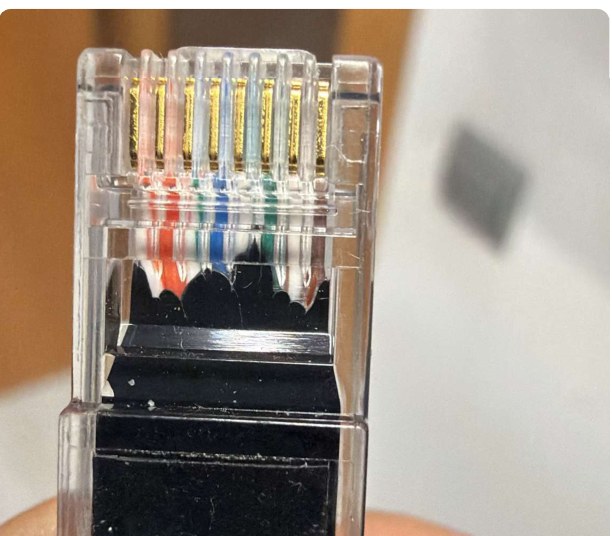
1. RJ45 Crimping Solis
(Pin 4: B- Blue | Pin 5: A+ Bl/Blue)
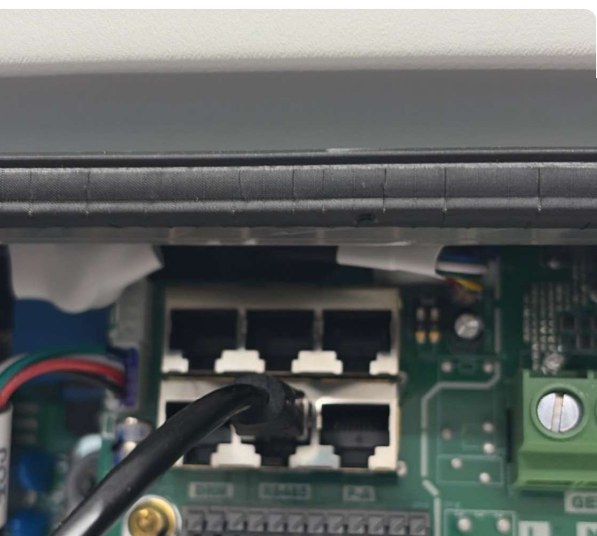
2. RS485 Port Solis S6
(Bottom left row – Port 4)
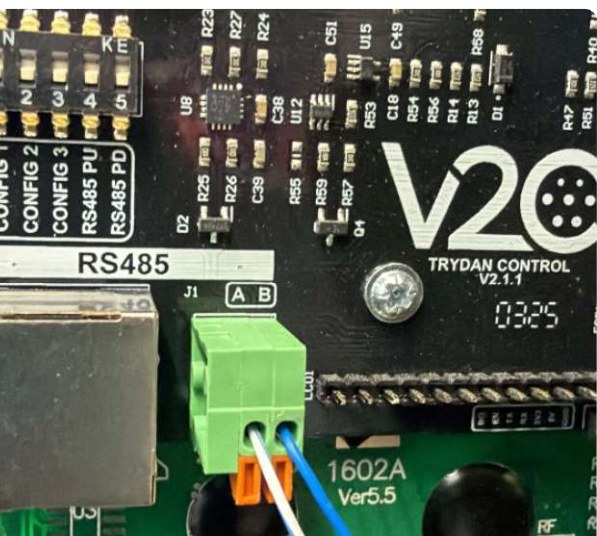
3. Terminal J1 V2C Trydan
(A: White/Blue | B: Blue)
Configuration in the V2C Cloud App
To enable Dynamic Power Control (DPC) and allow the Trydan to properly interpret the state of the lithium batteries associated with the Solis inverter:
Access the V2C Cloud application and enter the configuration of the Trydan charger.
Navigate to the Dynamic Power Control (DPC) section.
Set Device Type: Inverter.
Select Brand / Protocol: Solis (RS485).

Critical parameter: you must select the installation profile as HYBRID.
Do you need technical support?
Resolve your issue instantly through our AI Chat. If it is not resolved, generate a request in the Technical Support Center and we will contact you as soon as possible to provide you with the best solution.