
Integration of the Sigenergy inverter with Trydan/Trydan Pro

The Sigenergy inverter integrates with the e-Charger Trydan/Trydan Pro via Modbus TCP, activated from the mySigen app. The connection is made through WiFi via your local network, so no additional cables are needed.
Once connected, the charger will always know the photovoltaic production and will use that energy to charge your electric car.

Both devices must be connected to the same WiFi network and the same local network (not on different networks, nor one on the 2.4 GHz band and the other on the 5 GHz band if your router separates them). The use of Wi-Fi repeaters or mesh networks may affect the proper functioning of the system. We recommend using a stable and direct Wi-Fi network to ensure an optimal connection between the charger and the inverter.
Compatibility
The Sigenergy inverter is compatible with Trydan via Modbus TCP over WiFi, without the need for additional cables or dongles. Below are the key aspects of the integration:
| Aspect | Detail |
| Protocol | Modbus TCP over WiFi |
| Connection | Same WiFi/LAN network; no additional wiring required |
| Requirements | Modbus TCP server enabled on the inverter; fixed IP recommended |
| Dongle | Not necessary |
Step 1: Activate the Modbus TCP server on the Sigenergy inverter
Activation is done from the mySigen app by Sigenergy:
1. Open the mySigen app from Sigenergy on your mobile.
2. Go to Settings and then to System Settings.
3. Look for the option Modbus TCP Server and activate it with the switch.
4. Right below, an IP Address will appear, something like 192.168.x.x. Write it down exactly as it appears, you will need it in the next step.
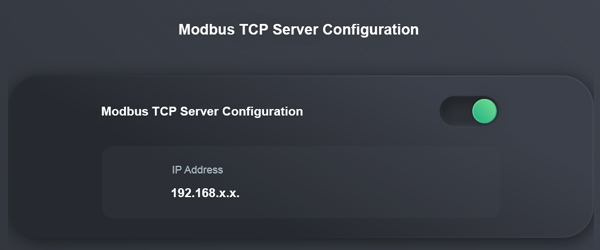
If you do not see this option or it appears blocked, you may need installer permissions or to update the mySigen app to the latest version. In that case, contact your Sigenergy installer.
Step 2: Configuration in the V2C Cloud app
With the inverter’s IP already noted, enter it in the V2C app:
1. Open the V2C app on your mobile and select your Trydan/Trydan Pro charger.
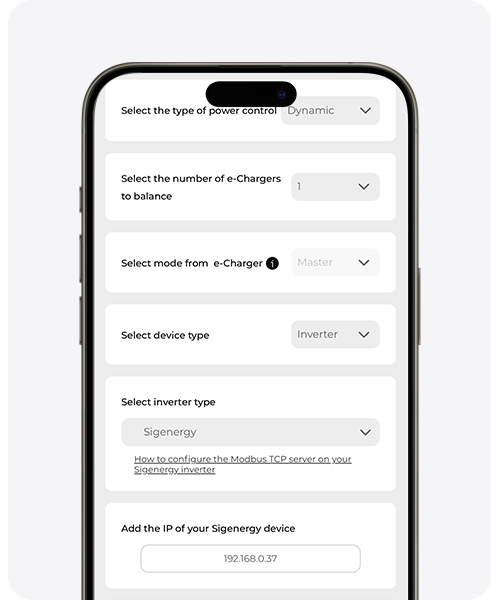
2. Go to Settings and look for Power Control.
3. In device type, choose Inverter.
4. In inverter type, find Sigenergy in the list. (if it doesn’t appear, update the V2C app to the latest version)
5. Paste or type the IP address you noted in Step 1.
6. Press Save.
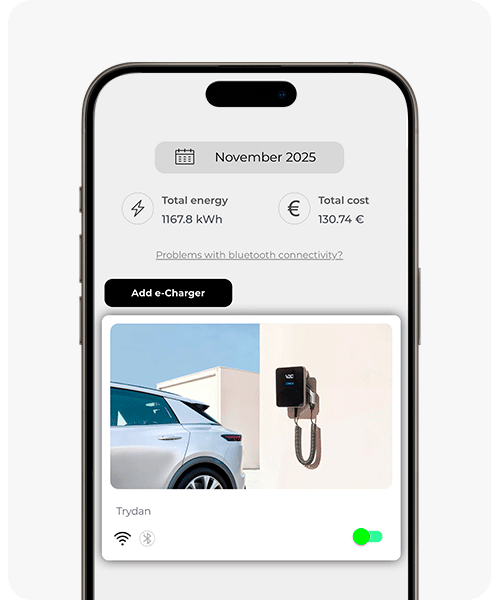
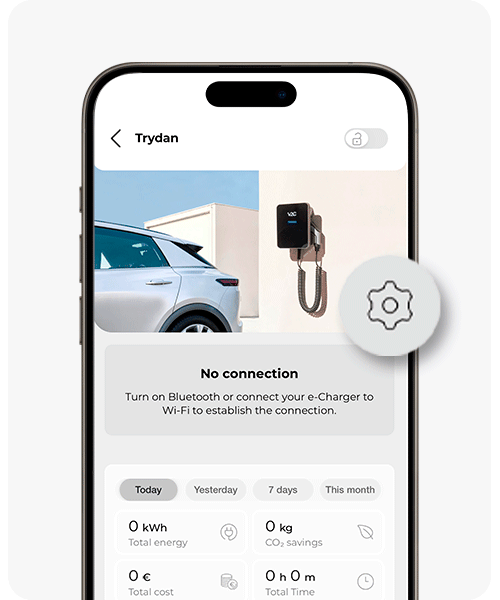
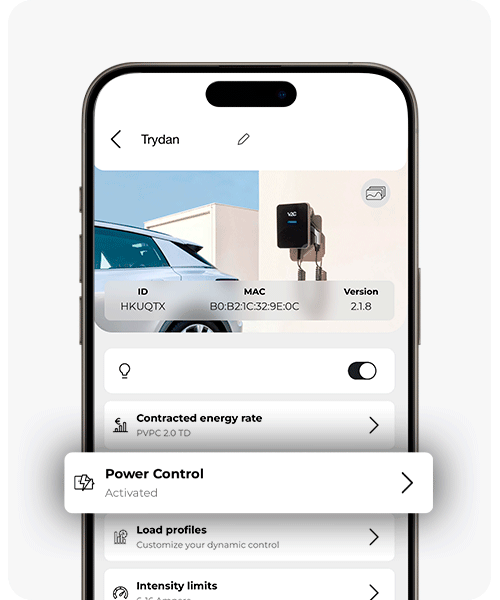
Step 3: Check that it works
After a few minutes, enter the V2C app again and check that the charger is displaying energy data (house consumption, solar production, etc.). If you connect the car, it should start charging by prioritizing the solar surplus according to the configuration you have chosen.
If something doesn’t work
- Check that both devices are still on the same WiFi network. Sometimes the router moves devices to a different network (for example, if you have separate 2.4 GHz and 5 GHz networks).
- Check that the IP has not changed. By default, routers can assign a different IP over time. If possible, ask the person who installed the router to always reserve the same IP for the inverter (“static IP” or “DHCP reservation”).
- Check that the Modbus TCP Server is still enabled in the mySigen app; some firmware updates may disable it.
For optimal operation, update the firmware of the Trydan/Trydan Pro charger and the mobile applications and the firmware of the Sigenergy inverter to their latest available versions.
Do you need technical support?
Resolve your issue instantly through our AI Chat. If it is not resolved, generate a request in the Technical Support Center and we will contact you as soon as possible to offer you the best solution.