
Integration of Huawei EMMA with Trydan/Trydan Pro

The Huawei EMMA (HEMS) system integrates perfectly with the e-Charger Trydan/Trydan Pro via Modbus TCP/IP, configured from the FusionSolar app. This direct connection eliminates the need for external dongles and allows for efficient dynamic control of photovoltaic power.
Huawei EMMA acts as an energy management system and can operate as a meter (up to 63A), optimizing self-consumption in real time. Communication is carried out via the local network (LAN/WiFi), so it is essential that EMMA and the Trydan charger are connected to the same network.

Make sure that EMMA and Trydan are connected to the same LAN network. It is recommended to assign a static IP to EMMA from the router to prevent changes after reboots.
Compatibility
The Huawei EMMA system is compatible with Trydan via direct Modbus TCP/IP, without the need for additional devices. The key aspects of the integration are detailed below:
| Aspect | Detail |
| Protocol | Direct Modbus TCP/IP |
| Meter | EMMA (≤63A) or external CT (only one active) |
| Requirements | Same LAN network; fixed IP recommended |
| Dongle | Not needed |
Initial access to Emma
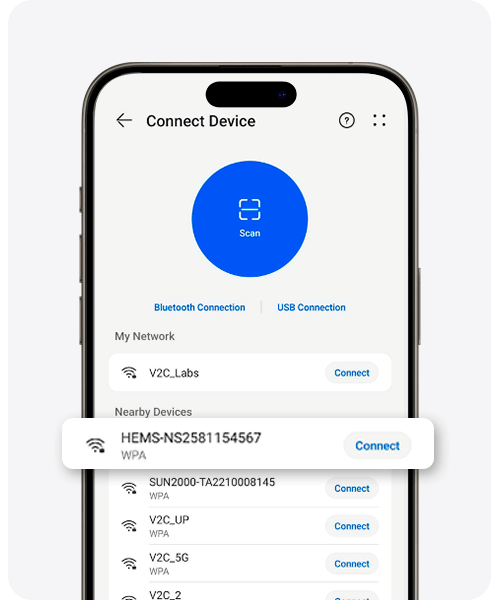
To start the setup, connect to the WiFi network generated by the EMMA device. Follow these steps:
1. Connect to the EMMA device’s WiFi network.
2. The password appears in the upper corner of the EMMA screen.
3. Open the FusionSolar app and log in with your credentials.
4. Set a new access password when prompted by the system.
Modbus TCP/IP Configuration
Route in FusionSolar: Set > Communications setting > Modbus TCP. Make the following adjustments to enable communication with Trydan:

Activate Modbus TCP connection
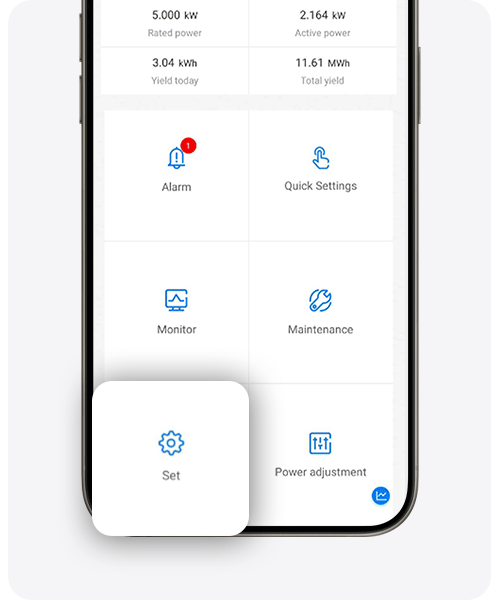
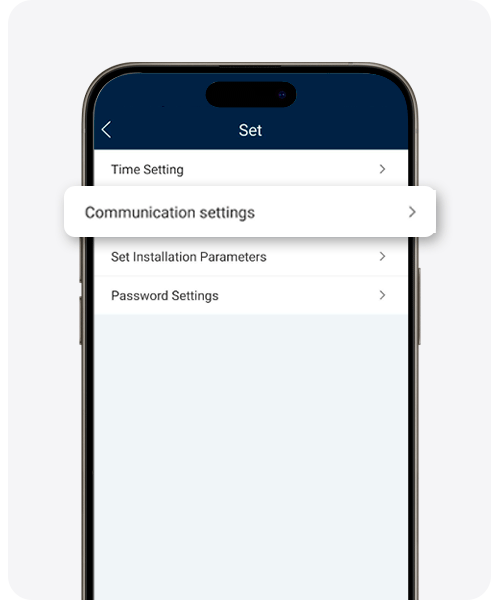
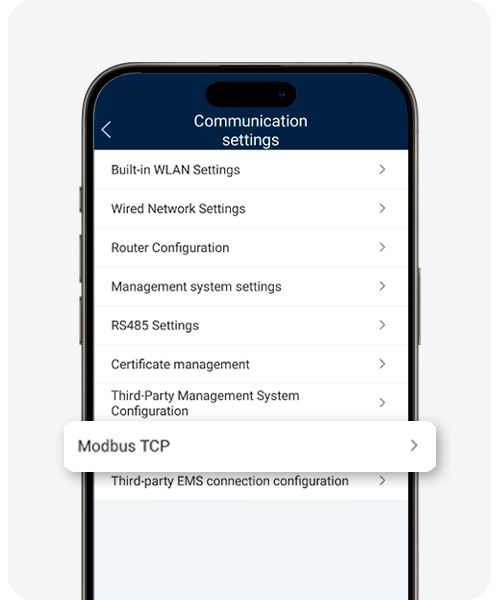
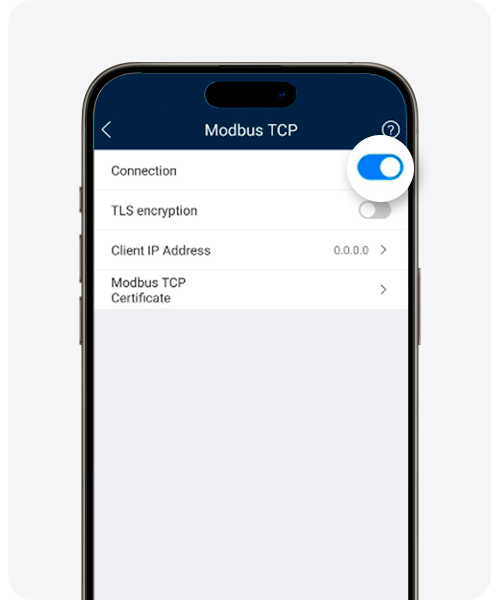
1. Go to Set > Communications setting.
2. Select Modbus TCP.
3. Activate TCP connection.
4. Deactivate encryption.
5. In the IP field, enter 0.0.0.0 to accept all connections, or the specific IP of Trydan.
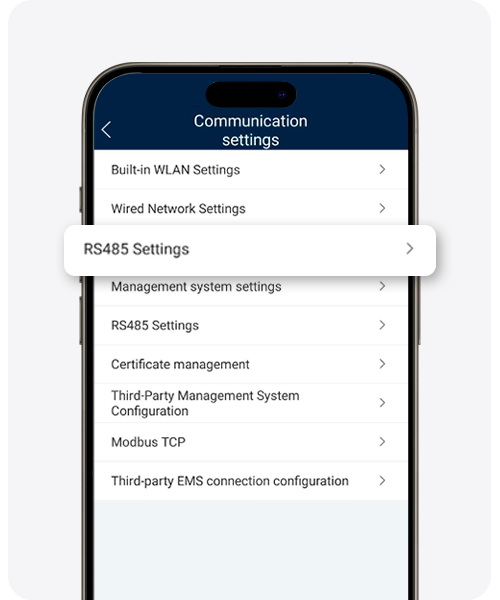
RS485 Verification (Inverter)
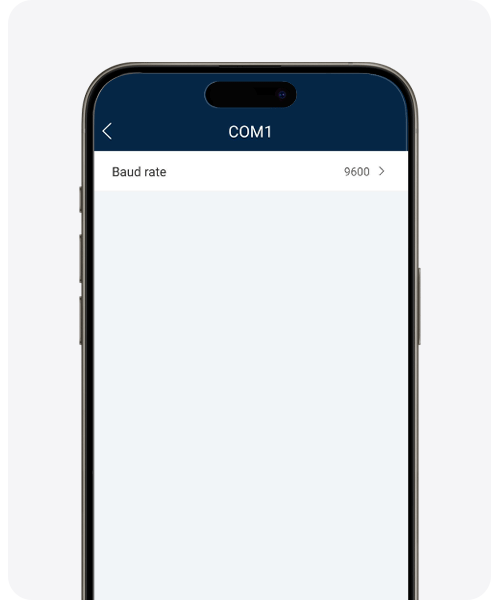
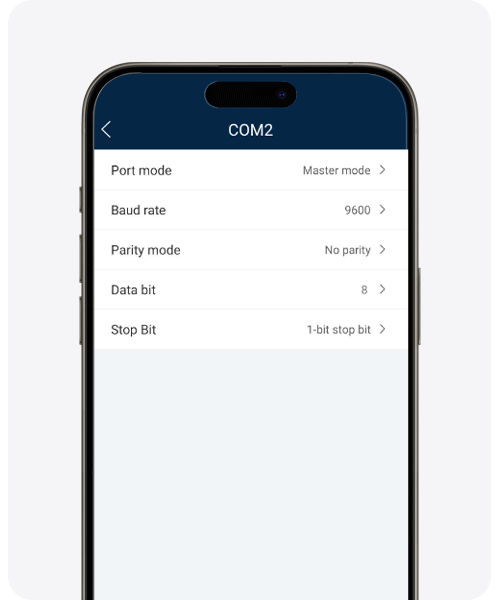
It is not necessary to modify the RS485 configuration. Just verify that the default values are correct:
- RS485 port enabled.
- Communication parameters in standard values.
- No additional modification is required for integration with Trydan.
Obtaining IP from EMMA
Check the IP assigned to EMMA
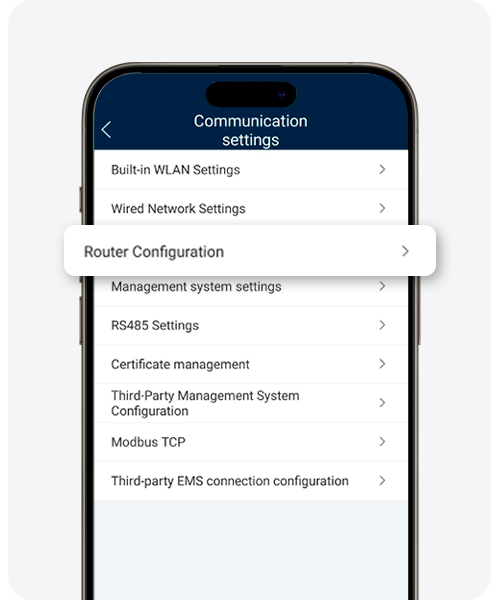
1. In FusionSolar, go to Router configuration.
2. Note the IP assigned to EMMA on the local network.
3. It is recommended to set a static IP on the router to prevent it from changing after a system reboot.
Configuration in the V2C Cloud app
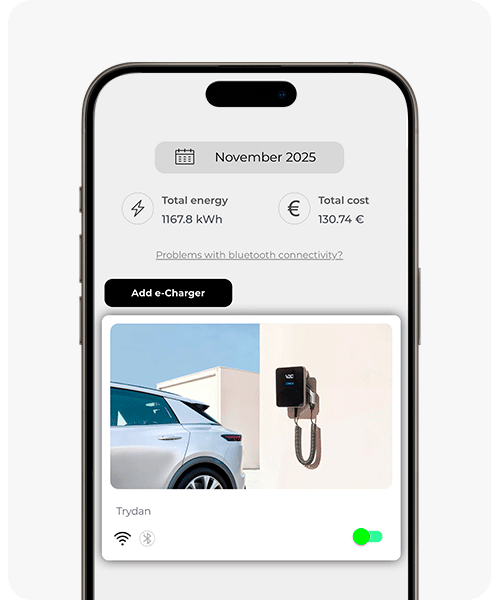
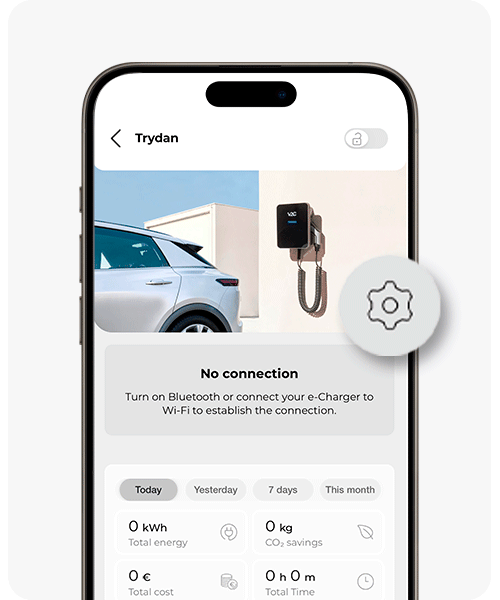
Open the V2C Cloud application and access your e-Charger to configure dynamic power control with the EMMA inverter.
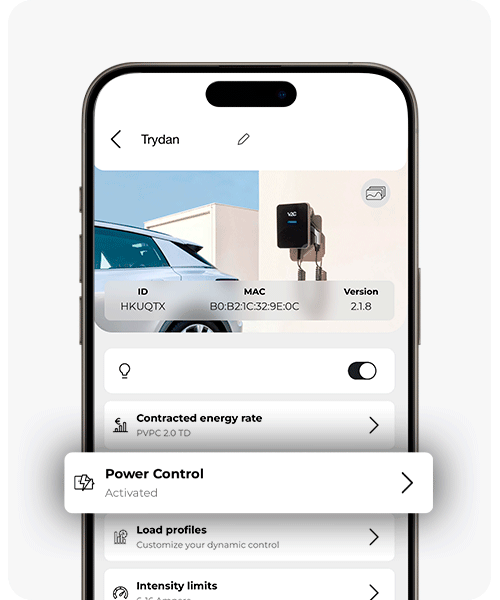
1. Go to V2C Cloud > Charger Settings > Power Control.
2. Activate power control and select Meter under ‘Device Type’
3. Under ‘Meter Type’, select Huawei EMMA.
4. Enter the IP of EMMA that you noted earlier.
5. Save changes and restart the charger.
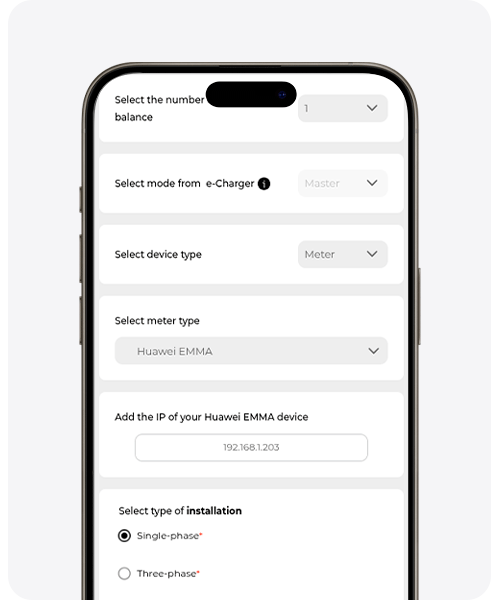
Measurement configuration
EMMA can act as a main meter or can be combined with an external CT. Only one measurement system can be active at a time.
✅ EMMA as a meter (recommended)
Measurement capacity up to 63A. It is the simplest option. Activate it directly from the FusionSolar app without additional hardware.
⚙️ External CT (alternative)
For installations exceeding 63A. It is configured via FusionSolar. Remember that only one of the two measurement systems can be active.
Have I completed the integration correctly?
When Trydan completes the startup, it connects with EMMA and obtains the necessary measurements for dynamic power control according to the configured load profile.
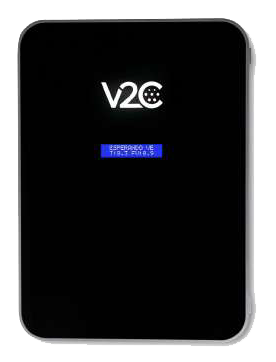
On the Trydan screen, you will see the measurements obtained from EMMA. Check that the display values match those shown by FusionSolar.
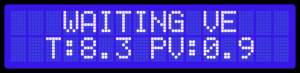
If Trydan fails to connect to EMMA, it will display an error message like the following. Check that all steps have been completed correctly.

The most common causes of communication errors are:
- EMMA and Trydan are not on the same LAN network
- The IP of EMMA has changed after a reboot (use static IP)
- The Modbus TCP is not enabled or the encryption is not disabled
- The IP entered in V2C Cloud is incorrect
Need technical support?
Resolve your issue instantly through our AI Chat. If it is not resolved, generate a request in the Technical Support Center and we will contact you as soon as possible to provide you with the best solution.