

What is V2C SmartLock and how to pair an e-Key or smartphone
V2C SmartLock is the functionality of the Trydan, Trydan Pro, and Alva e-Chargers that allows you to lock and unlock the charger wirelessly by proximity using an e-Key, that is, a device or smartphone that uses BLE (Bluetooth Low Energy).
Through a smartwatch, a fitness tracker, a key fob, an electric vehicle like Tesla Model 3 or BYD, or your own smartphone, you can unlock the charger without needing to do it from the app, the web platform, or the navigation buttons of the e-Charger. Smartphone pairing is currently only available on Trydan and Trydan Pro; on Alva, it is not yet possible to link a smartphone as an e-Key.
The way to link the e-Key varies depending on the type of device: key fobs, remotes, watches, cards, and vehicles have a fixed Bluetooth MAC address and are linked directly from the app; smartphones, on the other hand, require an additional Bluetooth pairing step, as they may use a rotating address for privacy reasons. This guide explains both cases separately.

IMPORTANT NOTE: The device must have a static MAC address for proper operation.
Trydan / Trydan Pro: before linking the e-Key, check that the firmware version of the charger is 1.7 or later, in the settings menu of the e-Charger (if it is earlier, update your charger). If the device you want to link is a smartphone, the required firmware version is 2.5.0 or later.
Alva: all firmware versions are compatible with the e-Key. Smartphone pairing is not available on Alva.

Keychain, remote, watch, card, or car
Devices with fixed Bluetooth MAC.

Your smartphone (Android / iPhone)
Two possible methods.
1. Link a key fob, remote, watch, card, or vehicle
Valid for key fobs and remotes, smartwatches, RFID/BLE cards, and compatible electric vehicles (Tesla, BYD, and other models). Follow these steps in the V2C Cloud app and bring the device close to your e-Charger to complete the pairing.

Access the V2C Cloud app and select your charger.
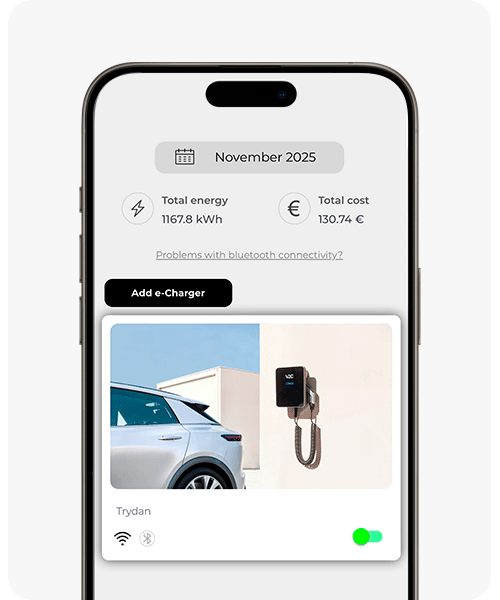

Press the settings button.
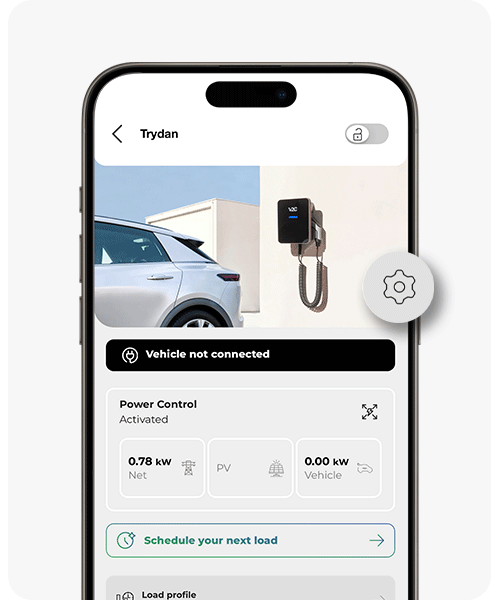

Access the “e-Keys” section (in some models, “RFID / e-Keys” — the name varies depending on the charger).
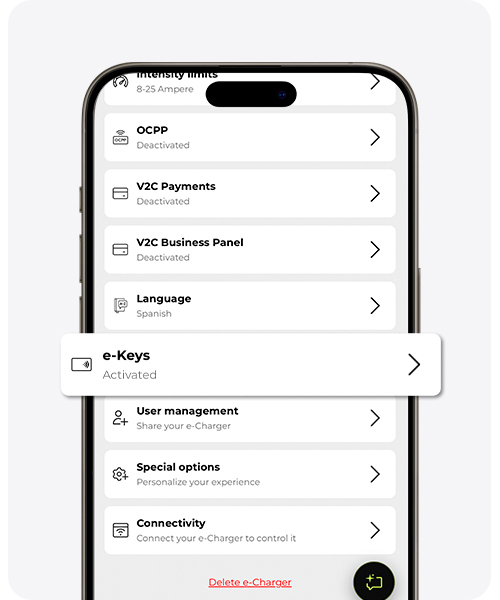

Activate the e-Key switch if it is still turned off.
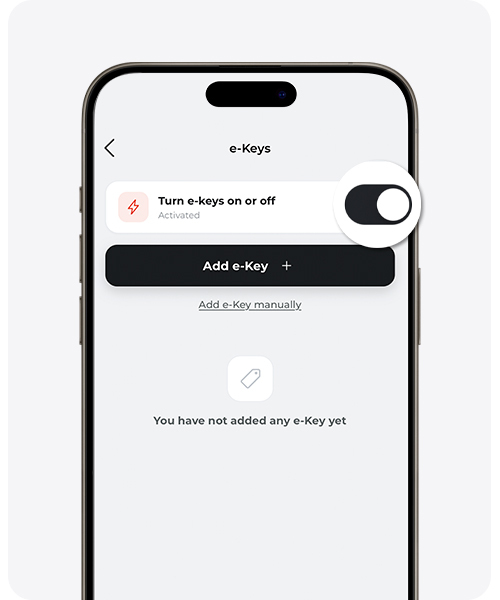

Choose how to identify the device:
- Automatic detection — Click on ‘Add e-Key’, give it a name, and bring the device close to the charger during the next 15 seconds.
- Manual introduction — If you know the MAC, click on ‘Add e-Key manually’, select type ‘e-Key’, give it a name, enter the MAC address, and select the e-Charger to which you want to assign this e-Key.
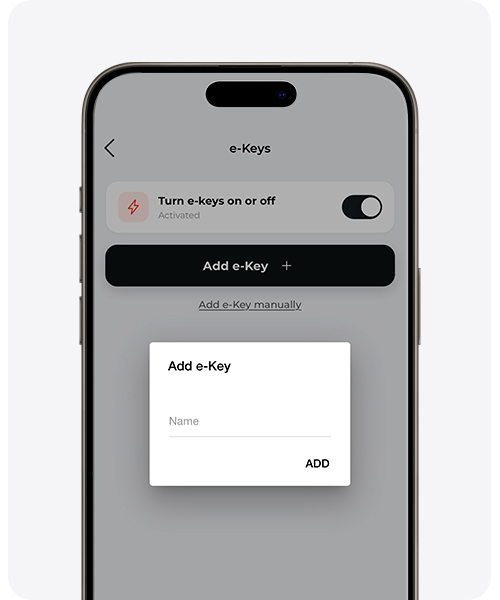
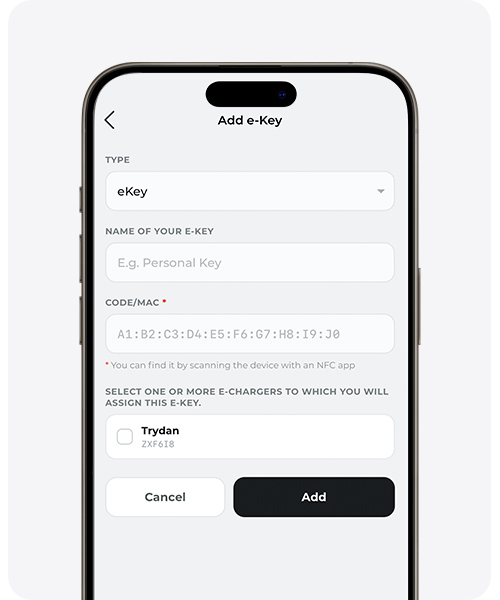

Ready: the e-Key appears in the list. You can rename it or delete it whenever you want.
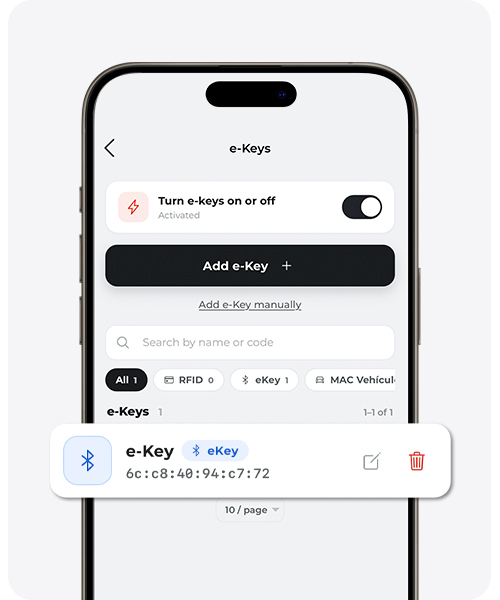
Electric vehicles (Tesla, BYD, and other compatible models): bring the car close to the charger and temporarily disable the Bluetooth of other nearby devices (phones, watches…) to avoid interference in detection.
2. Link a smartphone
Available only on Trydan and Trydan Pro. Alva does not currently support smartphone pairing.
Smartphones do not display their Bluetooth MAC address as directly as a key fob, and for privacy reasons, they may rotate that address. That’s why there are two methods: one recommended, and an alternative for when the first one proves to be complicated.
Recommended method: manually enter the MAC
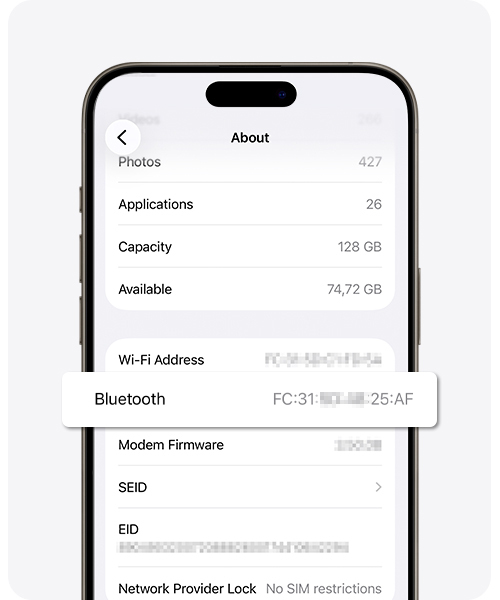
On your mobile, go to Settings → Bluetooth (Android: Settings → About phone → Status) or Settings → General → Information (iPhone), and locate the Bluetooth MAC address.
Press and hold the MAC address and copy it.
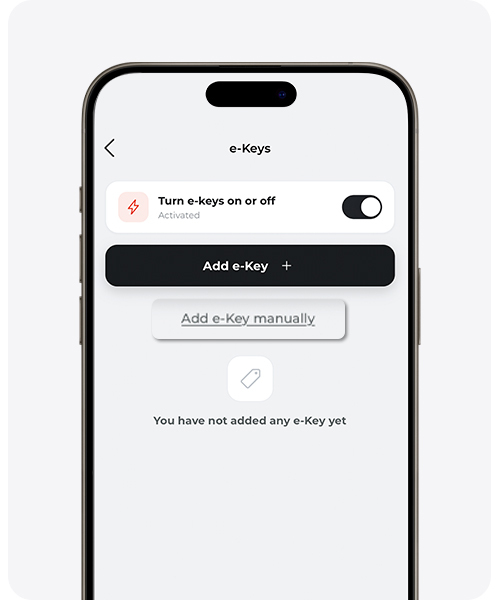
Open the V2C Cloud app → Select your charger → Settings → e-Keys (on some models, “RFID / e-Keys” — the name varies by charger) → Turn on the switch if it is still off → Click on ‘Add e-Key manually’.
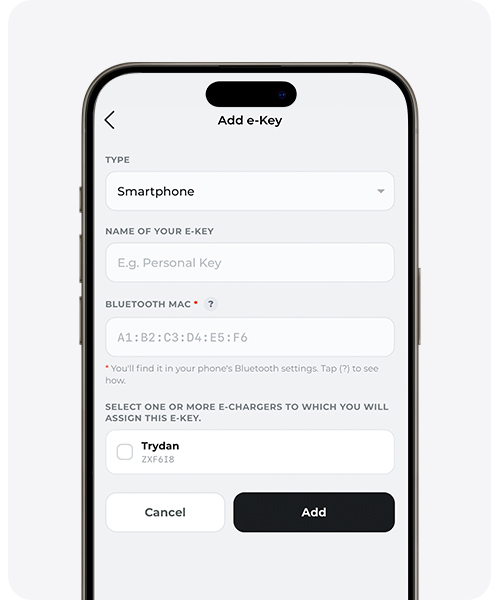
Select the type “Smartphone”, give it a recognizable name (e.g. “José’s iPhone”) and enter the copied MAC. Select the charger to which you want to assign this smartphone as an e-Key.
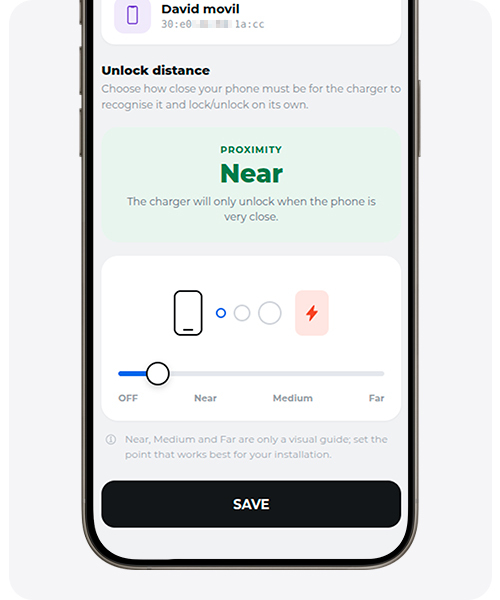
Choose the distance at which you want the charger to recognize your mobile to lock and unlock automatically.
Once added, from the mobile menu, activate and open Bluetooth, search for nearby devices and pair with your charger, just like you would pair other devices. The device name is the serial number of your charger.
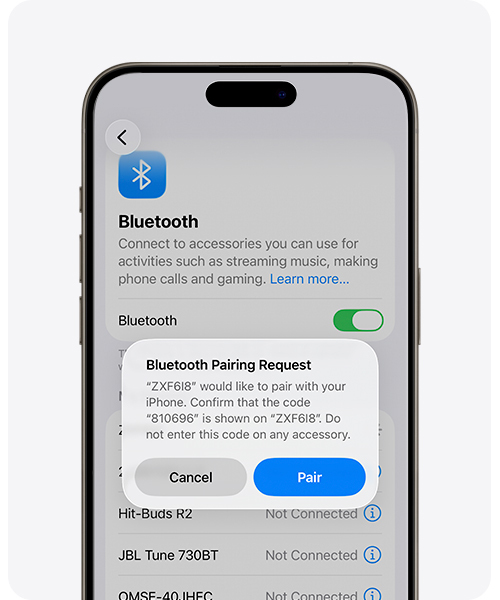
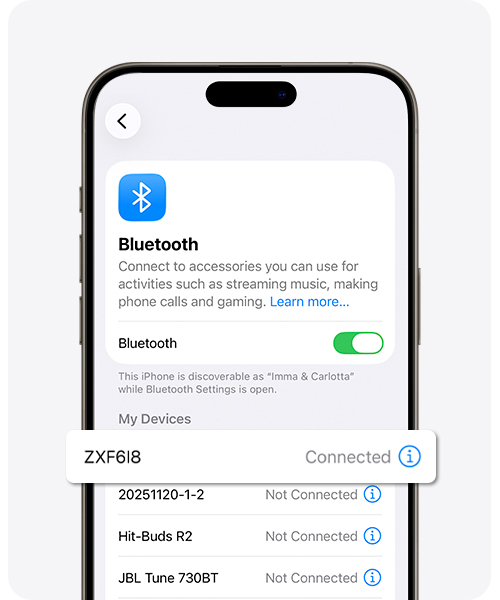
Ready: your smartphone is paired. You can rename it or delete it whenever you want.
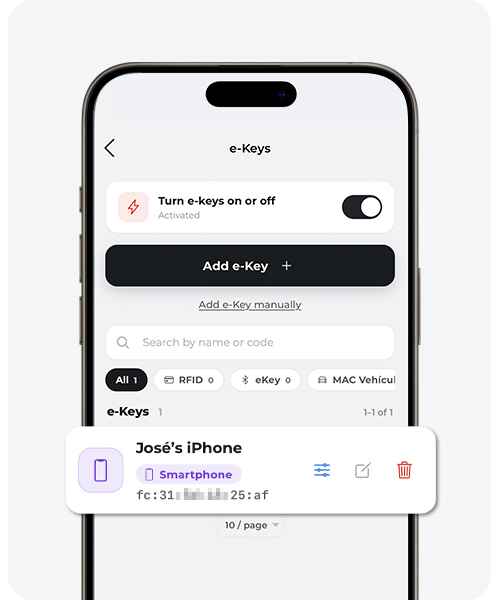
Alternative method: pair first and rename later
Useful if you cannot locate the MAC of your Bluetooth, or if the previous method did not detect the device on the first try.
Activate and open Bluetooth, search for nearby devices and pair with your charger, just like you would pair other devices. The device name is the serial number of your charger.
Open the V2C Cloud app → Select your charger → Settings → “e-Keys” (in some models, “RFID / e-Keys” — the name varies by charger) → Turn on the switch if it is still off.
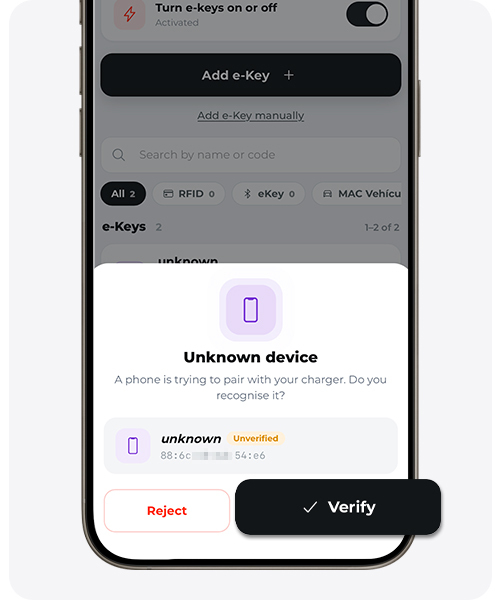
You will see a new entry marked as “Unknown” or “Desconocido” with your mobile’s MAC address. Click on ‘Verify’.
If it does not appear, close the application, turn off your mobile’s Bluetooth, and turn it back on. Access the “e-Keys” section of the application again.
Assign a name to confirm your smartphone.
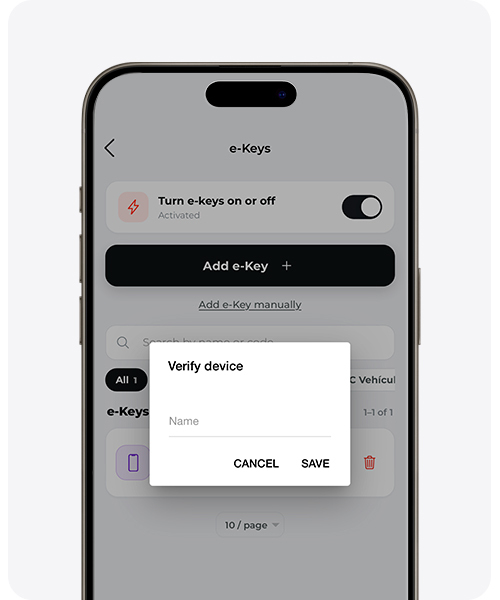
Ready: your smartphone is paired. You can rename it or delete it whenever you want.
This alternative method may not work on the first try. Modern smartphones use a random Bluetooth address for privacy, which can change between connections. In most cases, this method works directly; if it doesn’t, turn off Bluetooth and turn it back on.
Which method to choose?
| Method | When to Use It | Reliability |
|---|---|---|
| Recommended (manual MAC) | Whenever you locate the Bluetooth MAC in the mobile settings. | High — works on the first try in almost all cases. |
| Alternative (pair and rename) | When you can’t find the MAC or the recommended method does not detect the device. | Good — may require a reconnection due to the random BLE MAC. |
Do you need technical support?
Resolve your issue instantly through our AI Chat. If it is not resolved, generate a request in the Technical Support Center and we will contact you as soon as possible to offer you the best solution.