
Integration of the Solplanet inverter with Trydan

The Trydan communicates with the Solplanet (AISWEI) inverters using the Modbus protocol, via RS485 cable or WiFi. It reads in real-time the power exchanged with the grid, the photovoltaic production, and, in hybrid models, the battery status.
With this data, it automatically adjusts the vehicle charging power to prevent interruptions due to overconsumption and to take advantage of solar surpluses.

Requirement: the installation must have the Solplanet smart meter connected to the inverter. It is the device that measures the power exchanged with the grid and that Trydan uses to regulate the charging. It must be registered in the Solplanet app (E-meter section) and appear online.
- Compatibility
- Before you start: update your Trydan
- How to connect the Trydan to the inverter
- Option A: Modbus RTU connection via RS485 cable (recommended)
- Option B: connection via the Solplanet Ai-Dongle
- Option C: connection via the Elfin EW-11 gateway
- Mandatory step: configuration in V2C Cloud
- Check that it works
- If the Trydan does not receive data from the inverter
- Do you need technical support?
Compatibility
The integration is compatible with Solplanet inverters that use the general Modbus protocol from AISWEI:
- Single-phase grid inverters (e.g. ASW S-G series, from 1 to 6 kW).
- Three-phase grid inverters (from 3 to 60 kW).
- Single-phase hybrid inverters with battery (e.g. ASW H-S2 series).
- Three-phase hybrid inverters with battery (from 5 to 12 kW).
The Trydan automatically identifies the model when connected (grid or hybrid, single-phase or three-phase), so it is not necessary to specify it in the settings.
What integration allows
- Dynamic power control: the charging adapts to the household consumption to not exceed the contracted power.
- Photovoltaic modes: charging the vehicle with the excess from the solar installation.
- Battery reading (hybrids): charge/discharge power and state of charge (SOC).
- Battery protection (hybrids): prevents the home battery from discharging to charge the vehicle, respecting a configurable minimum SOC level.
Before you start: update your Trydan
The connection with Solplanet and the management of your home battery are available starting from firmware version 2.5.2 of the charger. If your Trydan has an earlier version, update it to the latest version and also update the V2C Cloud app before continuing.
How to connect the Trydan to the inverter
There are three ways to connect the charger to the Solplanet inverter. In all of them, the step of configuration in V2C Cloud is mandatory.
| Option | Additional Equipment | Notes |
|---|---|---|
| A · Modbus RTU (RS485) UTP Cable / RJ45 | None | Recommended. The fastest and most reliable. |
| B · Ai-Dongle Solplanet WiFi / Local LAN | Ai-Dongle (supplied with the inverter) | No wiring between devices. |
| C · Elfin EW-11 Local WiFi | Elfin EW-11 gateway and its power supply | Wireless alternative via RS485 port. |
Option A: Modbus RTU connection via RS485 cable (recommended)
Direct wired connection between the RS485 communication port of the inverter (RJ45 connector) and the Trydan, at the Modbus input of its control board.
Warning: opening the charger or inverter, and any work inside, may only be performed by authorized installers with the equipment de-energized.
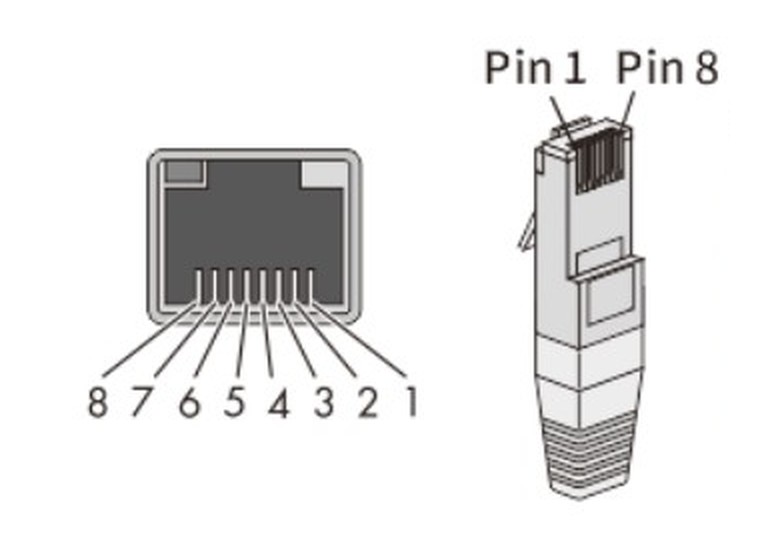
RS485 Inverter Connector
| Solplanet Inverter (RJ45) | Signal | Trydan (Modbus input) |
|---|---|---|
| Pin 1 | TX_RS485A | A (RS485+) |
| Pin 2 | TX_RS485B | B (RS485−) |
| Pin 4 | GND | Ground reference (optional) |
| Pins 3, 5, 6, 7, 8 | NC | No connection |
Cable Requirements
- Shielded network cable, CAT-5E or higher, according to EIA/TIA 568A or 568B.
- UV resistant if installed outdoors.
- Maximum length of the RS485 bus: 1000 m.
Communication Parameters
The Trydan uses the factory parameters of the inverter, so there is no need to modify anything on the Solplanet equipment:
| Parameter | Value |
|---|---|
| Speed | 9600 bps |
| Format | 8 data bits, no parity, 1 stop bit (8N1) |
| Modbus address of the inverter | 3 (factory value, do not modify) |
Settings in the Solplanet app
It is not necessary to activate any function on the inverter for the wired connection. It is only advisable to check that your Modbus address is still 3, as the installer or the dongle itself may have changed it:
- In the Solplanet app, enter the plant and select the inverter.
- Press Configure parameters.
- Open Modify Modbus Address (Modbus address modification) and check that the value is 3. If it is not, enter 3 and confirm.
Option B: connection via the Solplanet Ai-Dongle
The Ai-Dongle is the communication module that Solplanet supplies with its inverters to monitor them from the Solplanet app. The Trydan communicates with it directly through the home’s local network, without going through the cloud, and the dongle continues to send data to Solplanet normally.
Requirements
- Ai-Dongle installed in the inverter and connected to the home’s network (via WiFi or Ethernet cable), previously configured with the Solplanet app.
- Trydan and Ai-Dongle connected to the same local network.
- IP address of the Ai-Dongle. It is recommended to reserve a fixed IP on the router so that it does not change.
No additional options need to be activated in the app nor the serial number of the inverter needs to be entered: the Trydan obtains it automatically through the dongle.
Connect the Ai-Dongle to the home network
It is usually done during the commissioning. If the dongle is not yet on the network (or the router has been changed), from the Solplanet app:
- Connect your mobile to the dongle’s access point (AISWEI-XXXX, where XXXX are the last four digits of its serial number).
- Go to Network configuration and select the home WiFi.
- Enter the password and click Save.
- Check the blue LED of the dongle: a steady light indicates a correct connection to the router and the cloud; blinking means connected to the router but not to the cloud (valid for the Trydan); off means no connection to the router.
If the dongle is connected via Ethernet cable to the router, it is enough for the blue LED to be on.
How to obtain the IP of the Ai-Dongle
Check the list of connected devices (DHCP) from the home router or, in the Solplanet app, under Config. parameters › Dongle › Smart dongle details › IP Settings.
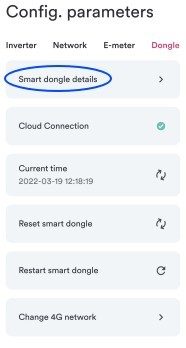
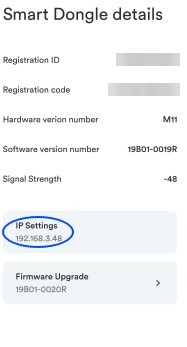
Note: the data updates approximately every 10 seconds, slightly slower than via cable. For maximum accuracy in regulation, option A is recommended.
Option C: connection via the Elfin EW-11 gateway
The Elfin EW-11 is an RS485 to WiFi gateway that connects to the RS485 port of the inverter; the Trydan accesses it via the local network using Modbus TCP. It is useful when running a cable to the charger is not feasible and Ai-Dongle is not available.
Connection of the EW-11 to the inverter
| Solplanet Inverter (RJ45) | Elfin EW-11 |
|---|---|
| Pin 1 · TX_RS485A | A+ |
| Pin 2 · TX_RS485B | B− |
| — | + / −: external power supply (5–18 V DC in EW-11; 5–36 V DC in EW-11A) |
Connect the EW-11 to the home’s WiFi
- Powers the EW-11. Upon starting, it creates its own open WiFi network (access point mode).
- Connect your mobile device or computer to that network and open the address 10.10.100.254 in your browser (username admin, password admin).
- In System Settings › WiFi Settings, change WiFi Mode to STA, press Scan, select the home WiFi, enter its password, and save.
- On the same page (WAN Settings), you can leave DHCP enabled and reserve the IP on the router, or disable it and set a static IP.
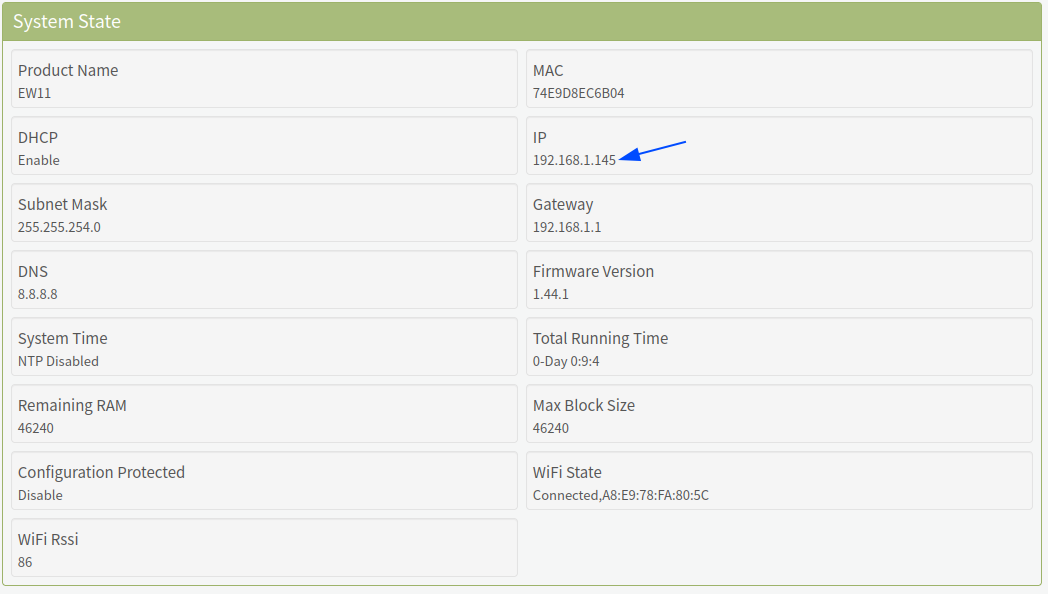
- Restart the gateway from Others › Restart. From that moment on, it can be accessed via the IP assigned by the home router, which also appears in the STATUS menu of the gateway.
Communication settings
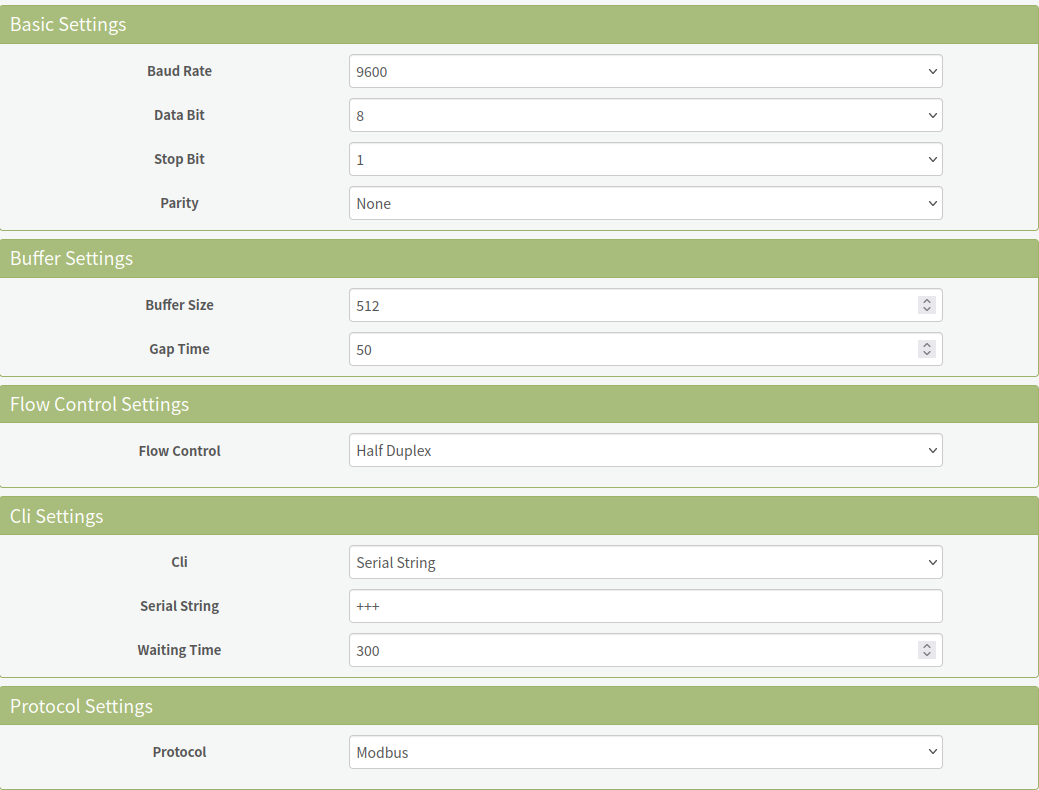
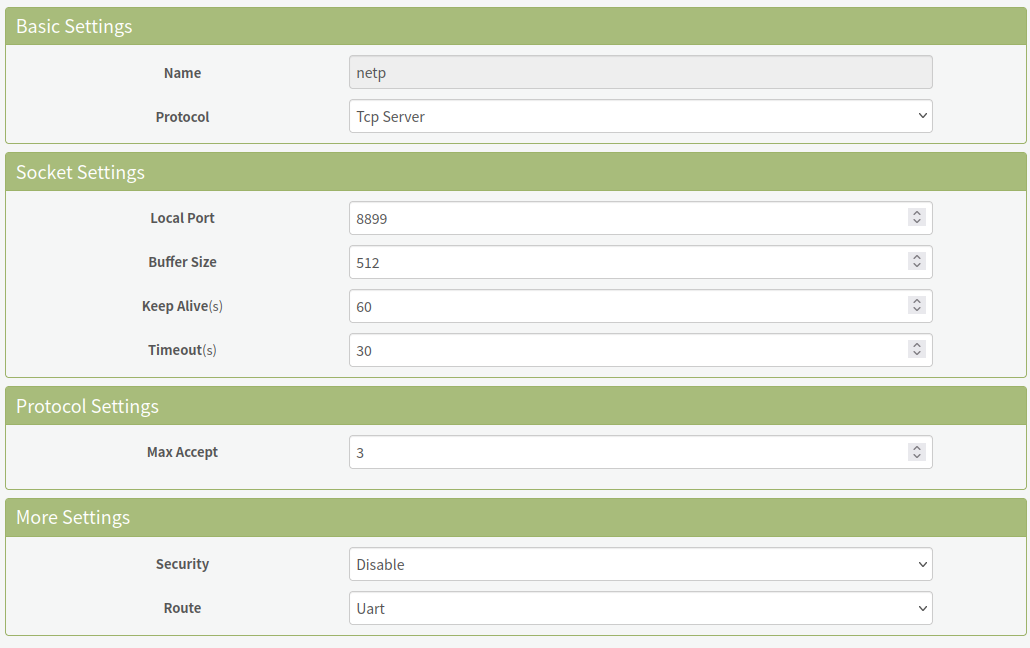
With the EW-11 already on the home network, go back to its web page (using its new IP) and configure:
| Menu | Setting | Value |
|---|---|---|
| Serial Port Settings | Baud Rate / Data Bit / Stop Bit / Parity | 9600 / 8 / 1 / None |
| Serial Port Settings | Flow Control | Half Duplex |
| Serial Port Settings | Protocol | Modbus |
| Communication Settings (netp) | Protocol | Tcp Server |
| Communication Settings (netp) | Local Port | 8899 |
| Communication Settings (netp) | Route | Uart |
Important: the local port must be 8899. Many third-party guides use 502; with that value, the Trydan will not be able to communicate with the gateway.
Mandatory step: configuration in V2C Cloud
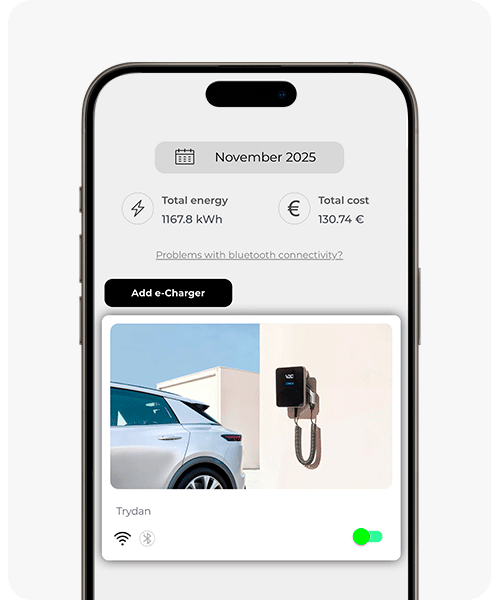
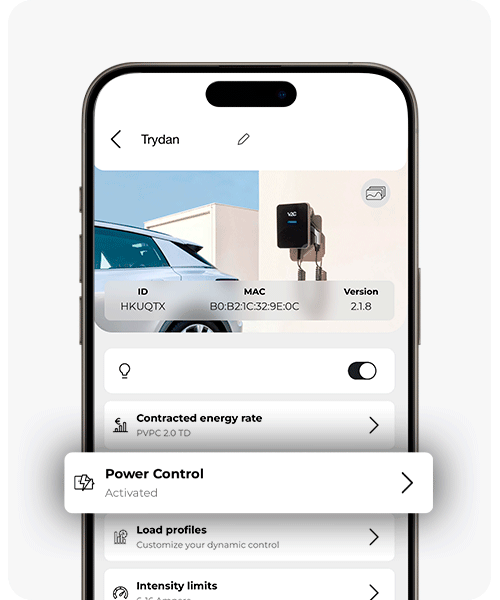
Whatever the connection method, configure the dynamic power control from the V2C Cloud app or website:
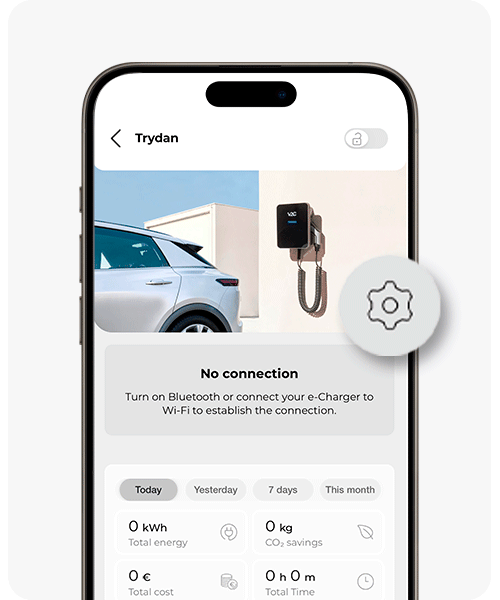
- Select the e-Charger.
- Go to Settings.
- Access Power Control and activate dynamic control with photovoltaic installation.
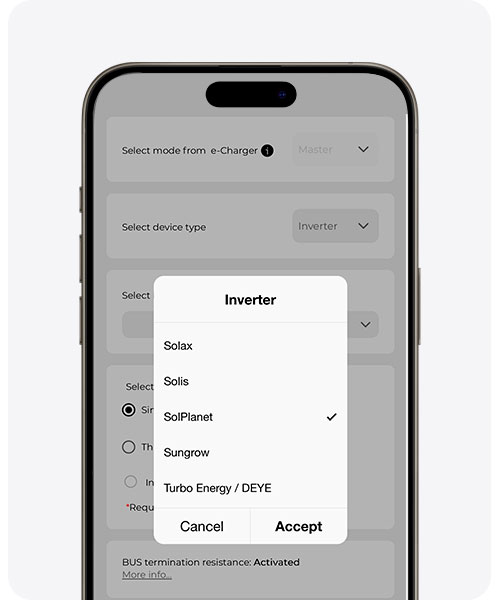
- Choose Solplanet as the inverter. (if it doesn’t appear, update the V2C app to the latest version)
- Select the type of connection: RS485, Ai-Dongle or Elfin EW-11.
- If you have chosen Ai-Dongle or Elfin EW-11, enter the IP address of the device.
- Hybrid inverters: if desired, activate battery protection and set the minimum SOC level (between 10% and 100%).
Important: the type of installation configured in the Trydan (single-phase or three-phase) must match that of the Solplanet inverter.
If you do not yet have an account in V2C Cloud or have questions about how the app works, you can consult this V2C Cloud setup guide.
Check that it works
After a few minutes, enter the V2C app again and check that the Trydan is displaying energy data (house consumption, solar production, etc.). If you connect the car, it should start charging by prioritizing the solar surplus according to the configuration you have chosen.
If the Trydan does not receive data from the inverter
- RS485 Cable: check that A and B are not reversed and that the Modbus address of the inverter is 3.
- Ai-Dongle / EW-11: check that the device is on the same network as the Trydan and that its IP has not changed.
- Grid power at zero: check that the Solplanet smart meter is connected and online in the inverter.
For optimal operation, update the charger firmware and the V2C Cloud app to their latest available versions.
Do you need technical support?
Resolve your issue instantly through our AI Chat. If it is not resolved, generate a request in the Technical Support Center and we will contact you as soon as possible to offer you the best solution.