
Integration of the Huawei inverter with Trydan

Huawei inverters are leaders in the solar industry, providing efficient and reliable solutions for photovoltaic energy conversion. Recognized for their quality, connectivity, and compatibility with various brands.
To configure Trydan with the Huawei inverter, the first step is to check if the inverter model is among those that establish direct and wireless connection with the e-Charger or, alternatively, if it requires the installation of a clamp meter. It is worth noting that since it is an inverter designed to work with batteries, the best way to connect is directly to the inverter.

The use of Wi-Fi repeaters or mesh networks can affect the proper functioning of the system. We recommend using a stable Wi-Fi network and direct connection to ensure optimal connectivity between the charger and the inverter.
Electrical installation
Once you have confirmed that your Huawei inverter is on the list, make sure it has been correctly installed and configured. Next, you need to take the home measurements. To do this, it is necessary to connect one of the compatible meters specified by Huawei to the inverter. In this manual, we will use the DDSU666-H meter as an example.
Installation of the power meter (DDSU666-H)
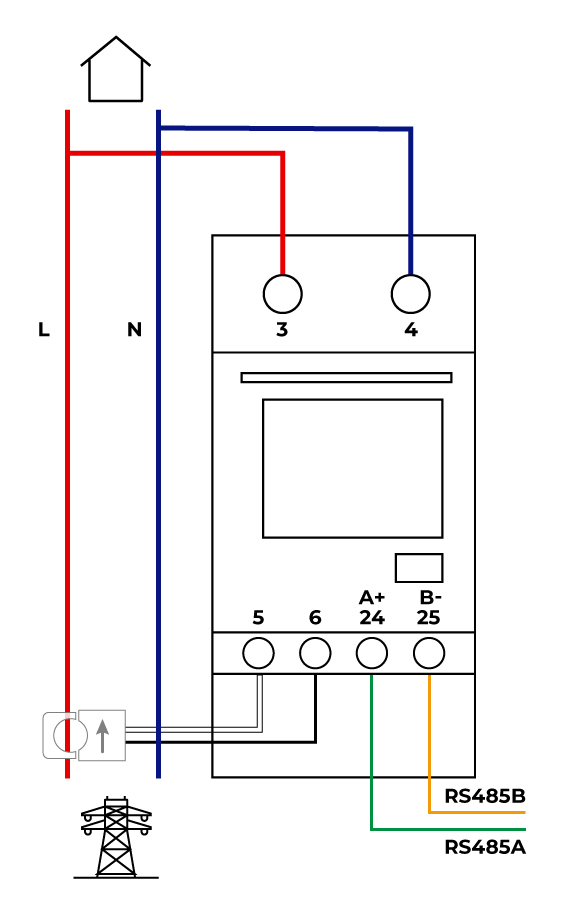
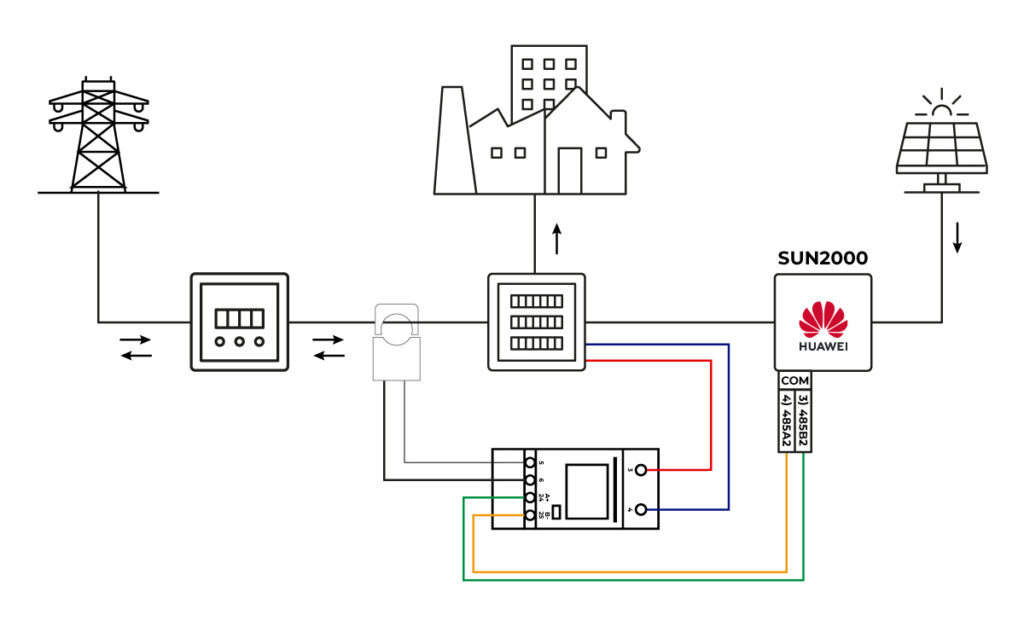
The meter is responsible for calculating the household consumption and sending it to the inverter via RS485. To establish this communication, the following connections must be made:
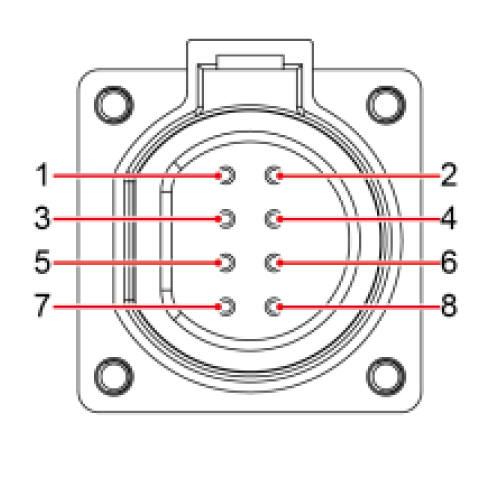
1. 485B1
| Differential signal – from RS485 |
| Single SUN2000: – |
| SUN2000 in cascade: Connects to SUN2000 units |
2. 485A1
| RS485A, differential signal + of the RS485 |
| Single SUN2000: – |
| SUN2000 in cascade: – |
3. 485B2
| RS485B, differential signal – from RS485 |
| Single SUN2000: Used for connecting to the RS485 signal ports of the battery and the power meter. |
| SUN2000 in cascade: Used for connecting to the RS485 signal ports of the battery and the power meter. |
4. 485A2
| RS485A, differential signal + of the RS485 |
| Single SUN2000: When both the battery and the power meter are configured, they must be connected to ports 485B2 and 485A2 |
| Cascaded SUN2000: When both the battery and the power meter are configured, they must be connected to ports 485B2 and 485A2 |
To power the meter, you must connect the phase to terminal 3 and the neutral to terminal 4. After that, establish the RS485 communication by connecting terminal 24 (A+) and 25 (B-) of the meter to pins 3 and 4 of the communication connector of the Huawei inverter, respectively. The clamp should be connected following the diagram below:
Huawei Inverter Setup
Download the FusionSolar app
Once the installation is complete, you can configure the communication of the Huawei inverter thanks to the WiFi signal it generates. This configuration can be executed from a smartphone, so we will use the mobile app as an example. To do this, download the FusionSolar app and install it on your mobile device.

Physical connection of the device to the inverter
It is necessary to have the SDongleA device.
This is an additional device to the inverter that acts as a WiFi adapter.*
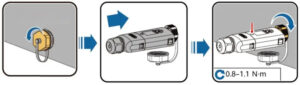
To establish communication with Trydan, the SDongle must be connected to the USB port of the inverter as shown in the images.
After that, the SDongle initiates the boot protocol and the LED starts flashing red. When it finishes, the flashing will be green and it will generate a WiFi hotspot for 3 minutes.

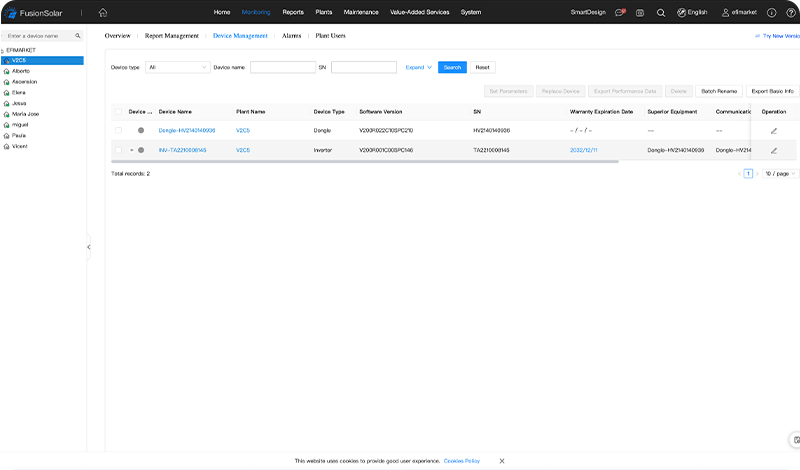
Check the SDongle version
We must check that the device has a version higher than V100R001C00SPC127, or preferably the latest.
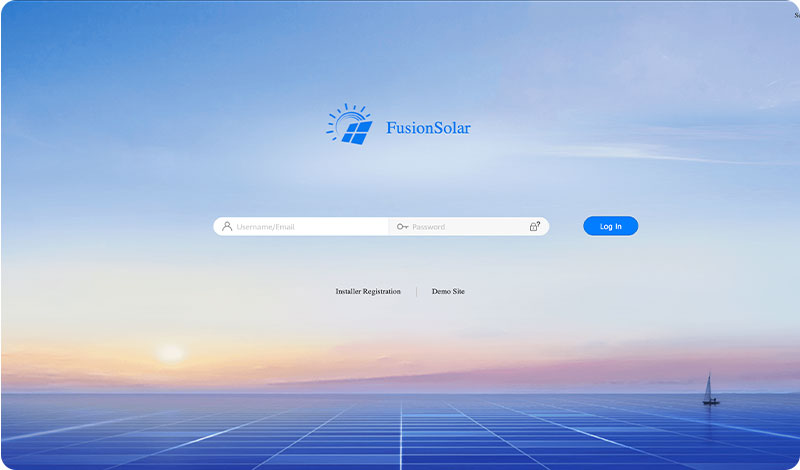
1. Log in to the FusionSolar web portal.
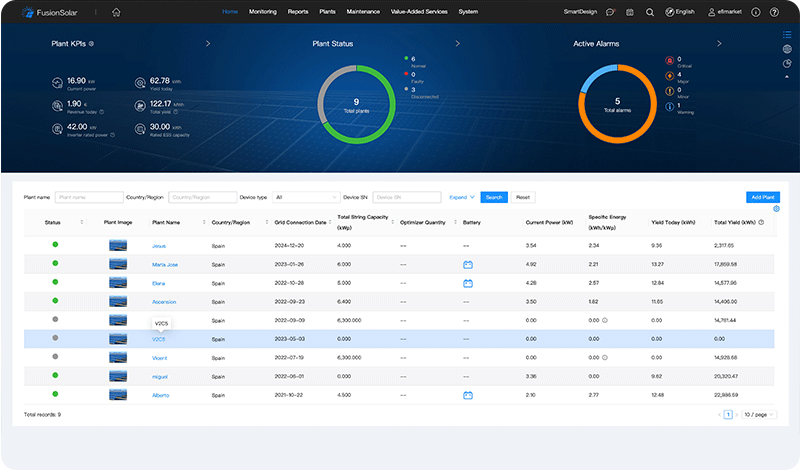
2. Go to the Home page and select the plant (installation) you want to check.
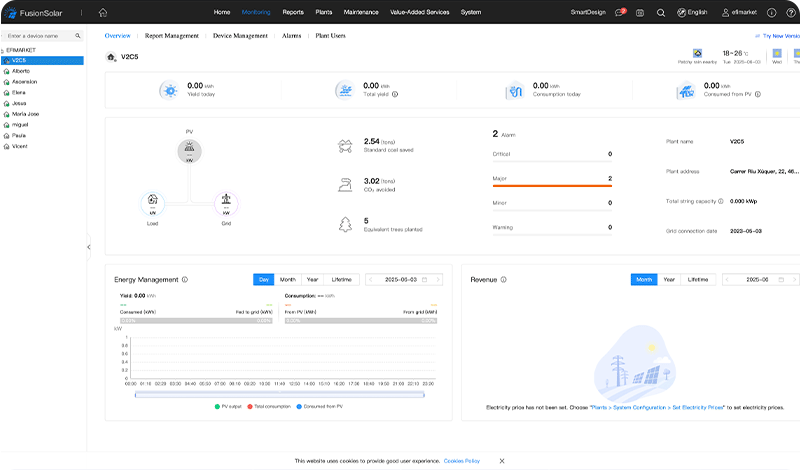
3. Next, select ‘Device Management’.
4. Check the version of the SDongle software. If you do not have a version higher than the one mentioned above or the latest, you need to update it (next point).

Update the version
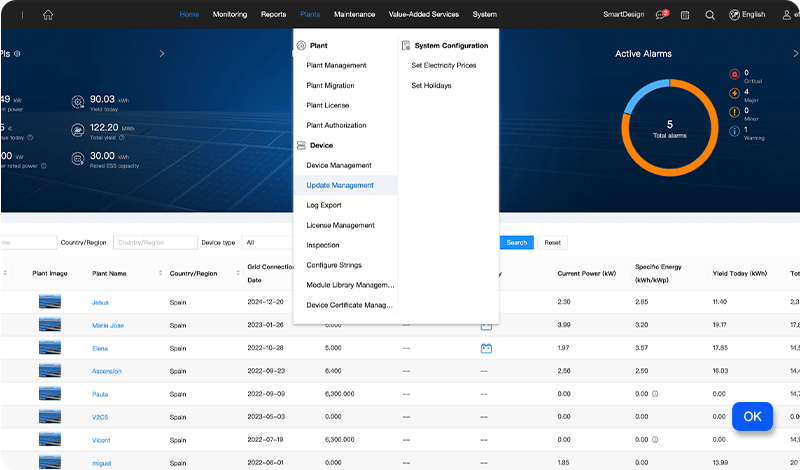
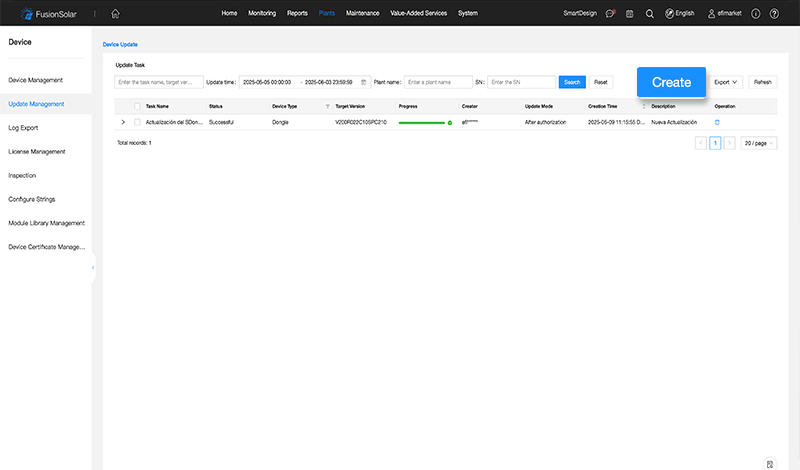
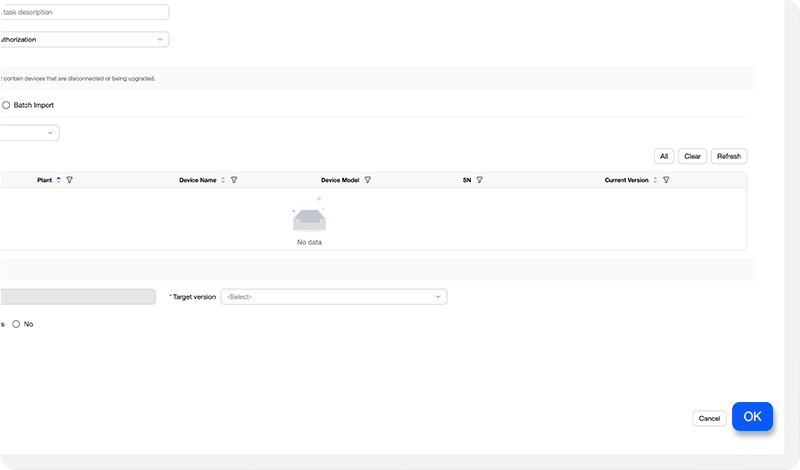
1. Go to the ‘Plants’ section and then to ‘Update Management.’
2. Select the ‘Add’ button.
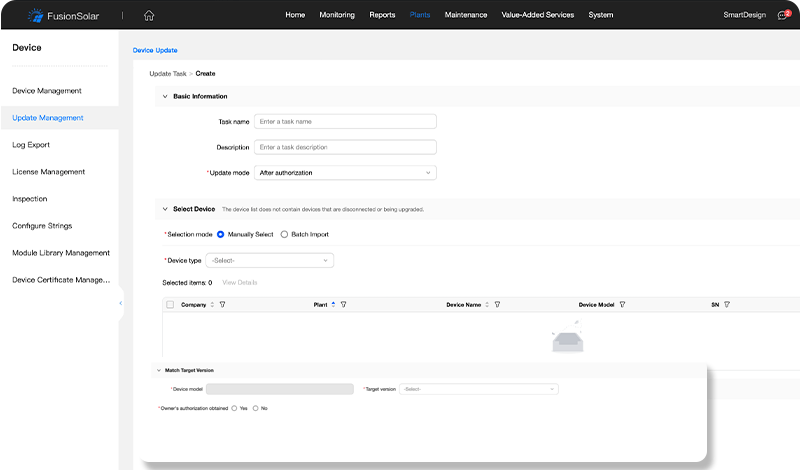
3. Fill in the necessary data and select the device you want to update. In the ‘Target version’ field, select the latest version and in the ‘With authorization’ field, check the ‘Yes’ box.
4. Click ‘Accept’ and finally, confirm the update task.
Connection to the inverter
After updating the SDongle, you must connect to the Huawei inverter. Then, you need to enable the communication protocol Modbus TCP/IP, check and note the communication address (COM) and check and note the IP address assigned to the inverter.
Connection to the inverter
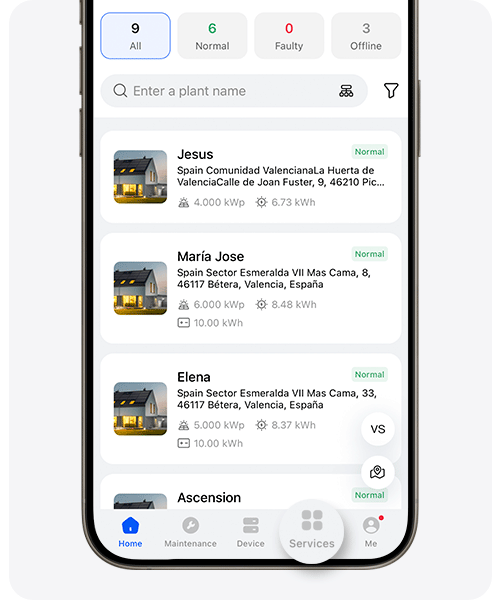
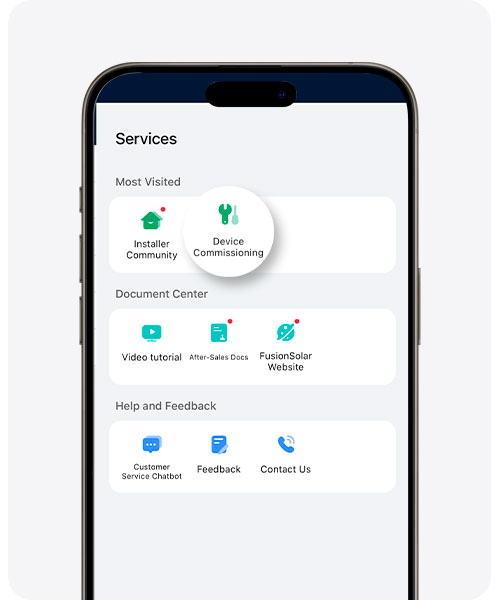
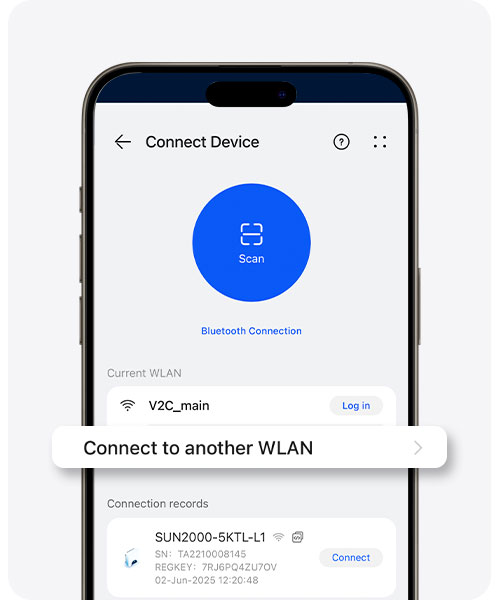
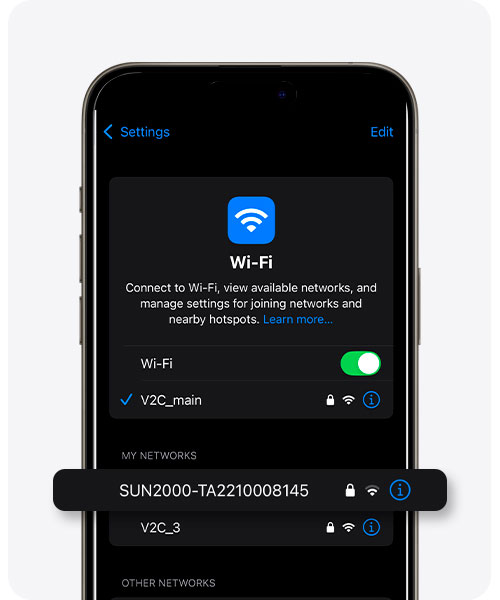
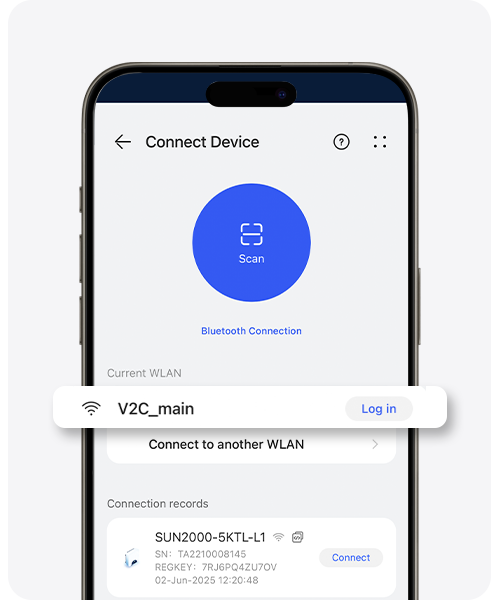
To establish the connection with the inverter:
1. Go to the ‘Services’ section.
2. Select ‘Device Commissioning’.
3. Select ‘Connection to another WLAN’ to connect to the inverter’s network.
4. Select SUN2000 and enter the password ‘Changeme’.
5. Return to the Fusion Solar app, access the SUN2000 network, and enter the password, which by default is ‘00000a‘.
Modbus TCP/IP Communication Protocol
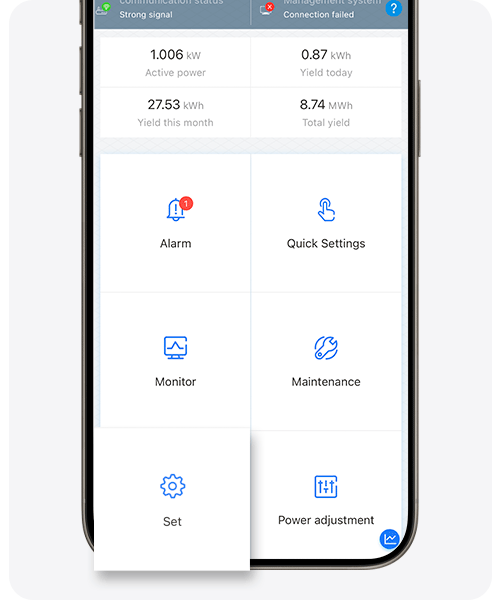
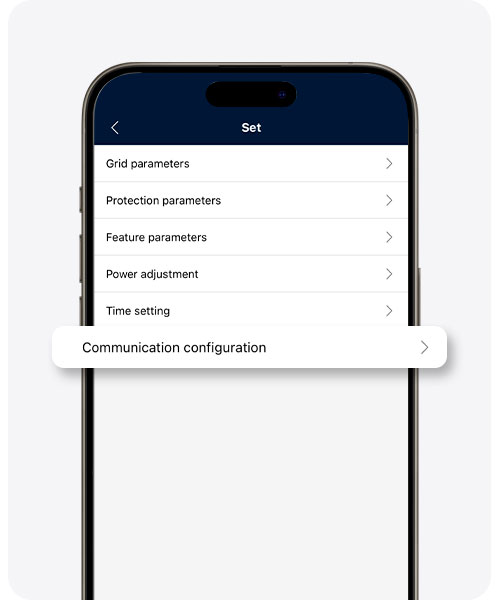
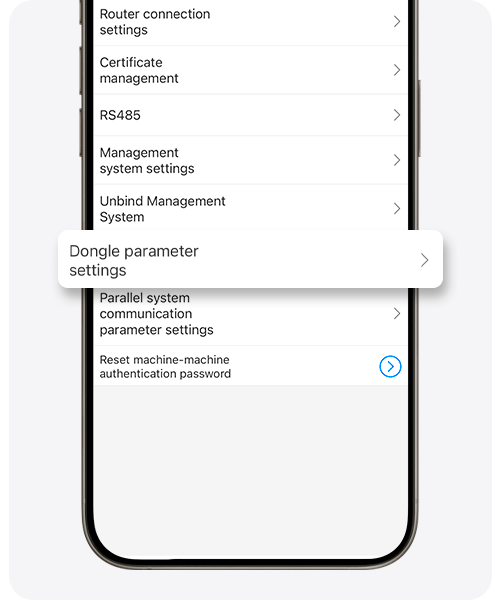
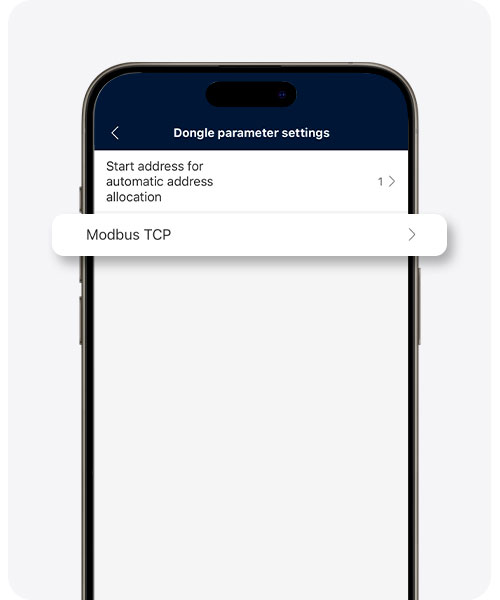
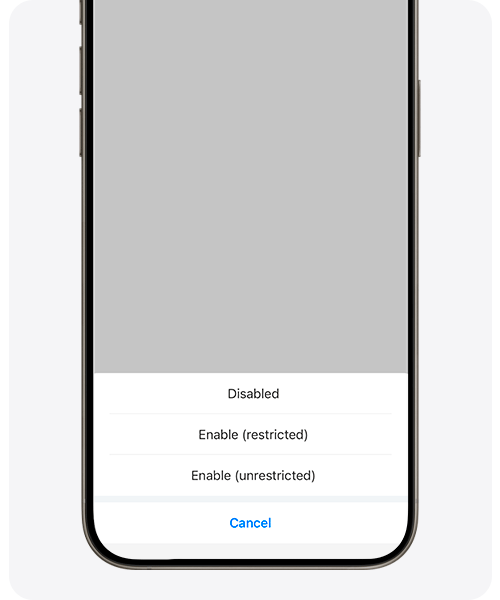
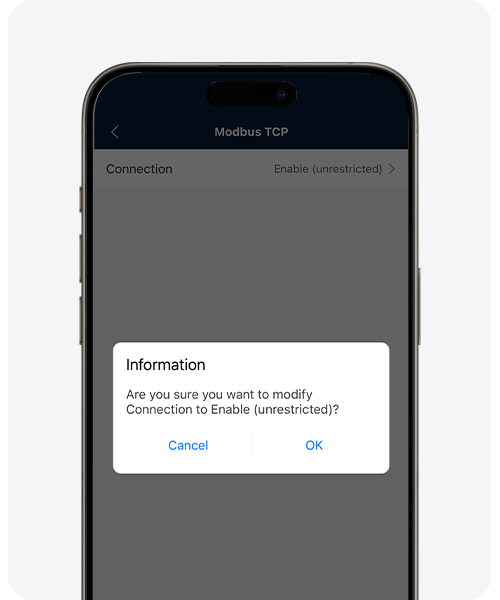
1. Go to the ‘Configure’ section.
2. Access the ‘Communication Settings’ section.
3. Select ‘Dongle Parameter Settings’.
4. Click on ‘Modbus TCP‘.
5. Next, in ‘Connection’, click on ‘Enable Unrestricted’.
6. Finally, select ‘Accept‘.
Take note of the COM address
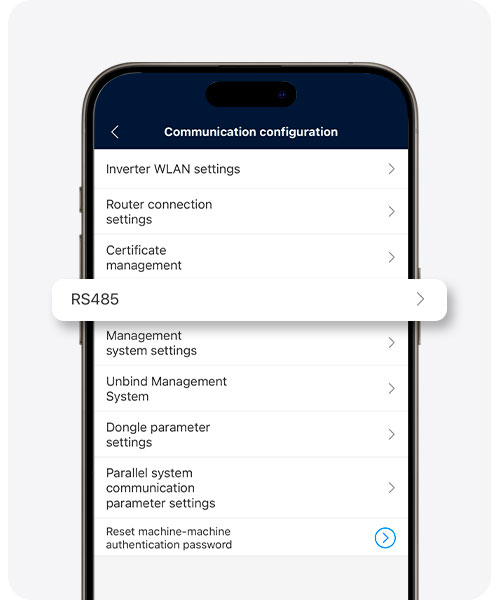
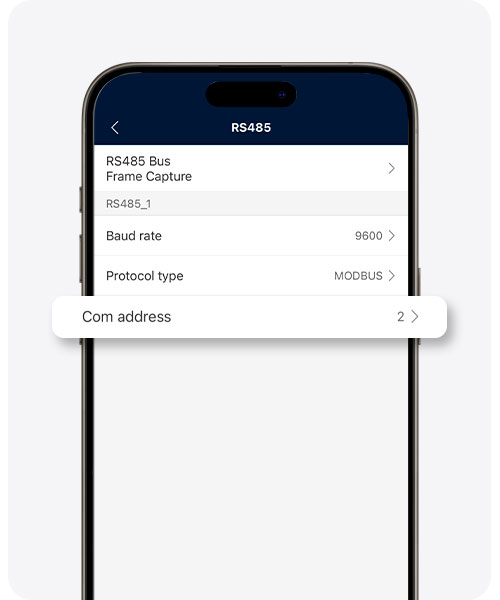
1. Go to the ‘Configure’ section.
2. Select ‘Communication Settings’.
3. Click on ‘RS485’.
4. Take note of the COM address.

Consult IP
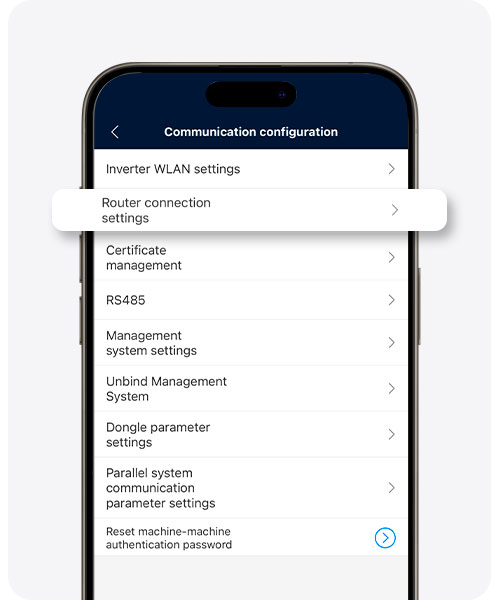
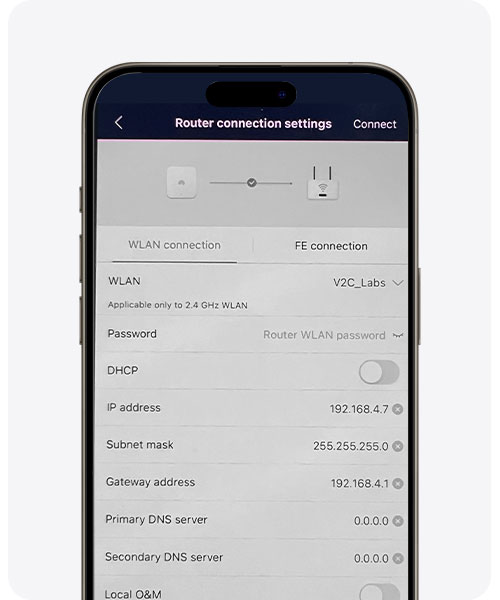
1. Go to the ‘Settings’ section.
2. Click on ‘Communication Settings’.
3. Select ‘Router Connection Settings’.
4. Click on the arrows to open the dropdown and note the IP address*.
Enter the password for the WiFi network and press the ‘Connect’ button.
Alternative: connection without dongle via Modbus TCP
If your Huawei SUN2000 inverter allows it, Trydan can communicate with it directly via Modbus TCP, through the home’s WiFi/LAN network and without installing the SDongle. In that case, follow these steps instead of those in the previous section.
The configuration is done from the FusionSolar app, with an account that has installer permissions.
Important: the menu paths and option names may vary slightly depending on the inverter model and the firmware and FusionSolar app version.
Requirements
- The inverter must be connected to the home’s WiFi network and its production data must appear correctly in the FusionSolar app. If the inverter does not have a network connection compatible with the home network, enabling Modbus TCP will not be sufficient to establish communication.
- You must know the local IP address of the inverter on your network, usually of the type 192.168.1.x. You can check it in the FusionSolar app or on your router’s management website.
1. Connect to the inverter with FusionSolar
- Open the FusionSolar app and go to Services → Commissioning.
- Connect to the local WiFi network emitted by the inverter. Default password: Changeme.
- Log in with installer permissions. Default password: 00000a.
2. Enable Modbus TCP
The configuration path depends on the generation of the inverter and its firmware.
Option 1. Latest models
- Go to Communication Settings → Router Connection Settings.
- Look for the Local O&M option and enable it if available. This feature allows access to the inverter from a compatible WiFi/LAN network, without directly connecting to its WiFi access point.
Important: enabling Local O&M does not guarantee that Modbus TCP is available for Trydan. Also, check that the model and firmware support the service and type of connection that the charger needs. Models over 8 kW may block access without a dongle, depending on their manufacturing date.
Option 2. Classic models
Access, if available, to Device → Settings → Communication Settings → Modbus TCP and review these options:
- Modbus TCP: enables the service if the firmware offers this option.
- LAN Access: access from the local network through compatible communication devices.
- AP Access: access via the WiFi access point of the inverter itself, when the model and firmware allow it.
Attention: AP access and LAN access are not equivalent. To communicate through the home router, the inverter must be accessible from that network; enabling only AP access does not guarantee that connectivity.
Summary
To connect Trydan with a Huawei SUN2000 without a dongle through the home network, check the following:
- Service: Modbus TCP must be enabled and available on the inverter.
- Network: the inverter must be accessible from the home’s WiFi/LAN network and you must know its local IP address.
- Compatibility: the availability of these features depends on the inverter model, its firmware, and the communication interface used.
Then, configure Trydan in the V2C Cloud app as explained below, entering the local IP address of the inverter.
Configuration of the Huawei inverter in the V2C Cloud app
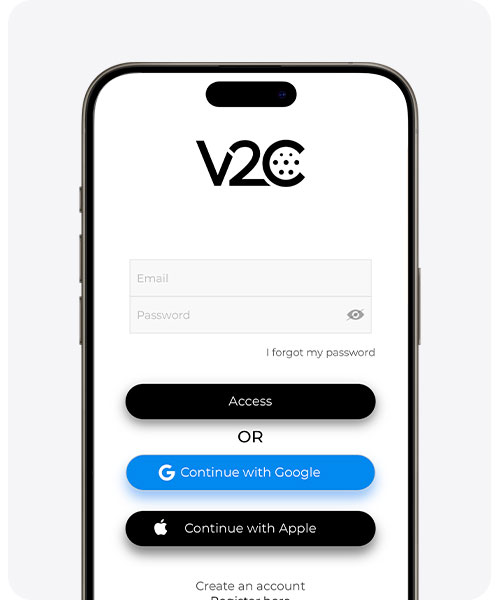
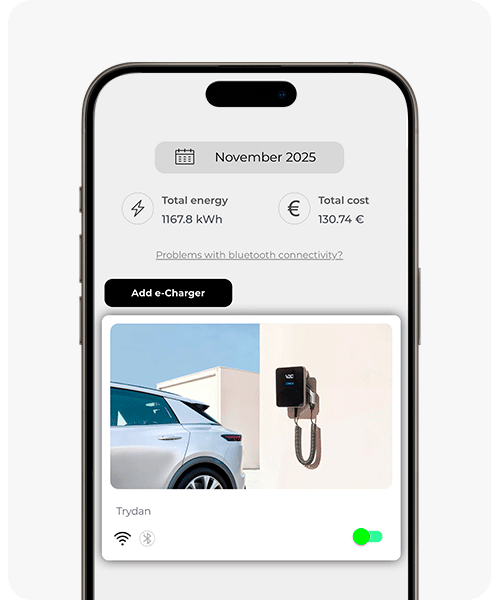
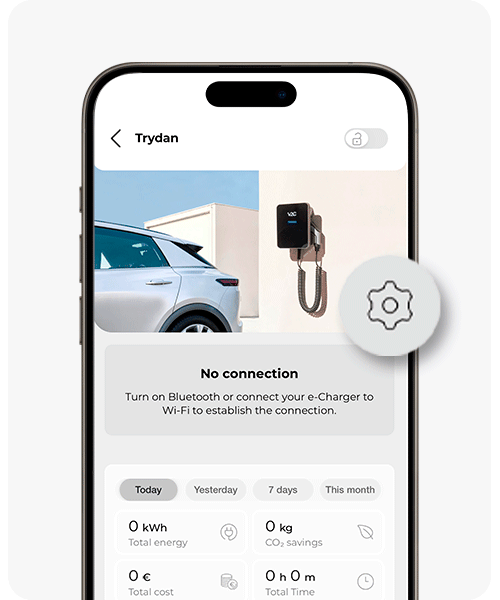
Open the V2C Cloud app and access your e-Charger to properly configure dynamic power control.
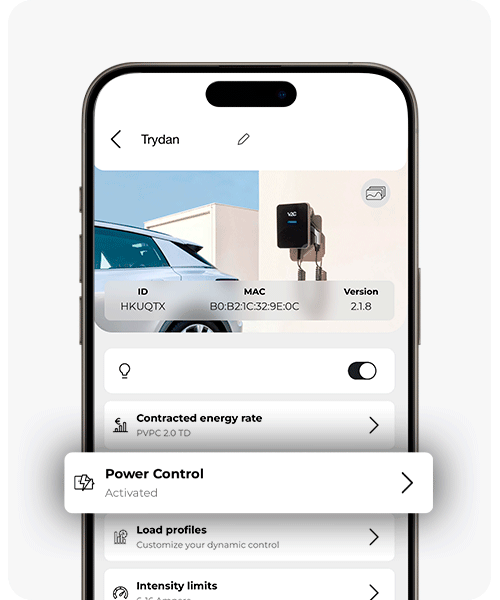
Access the charging configuration section and select ‘Dynamic Power Control’.
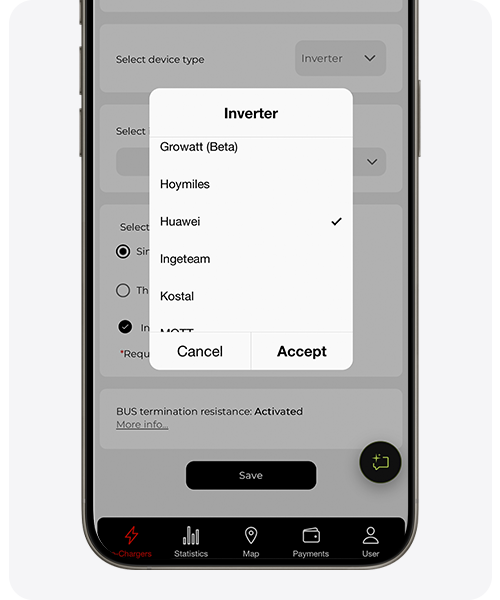
In ‘Device type’, select ‘Inverter’ and in ‘Inverter type’, ‘Huawei’. If you have assigned a Static IP in the Huawei app, make sure to enter the IP.
Then, select the COM address you noted earlier. And select the type of installation.
Don’t forget to save the changes so that the modifications are recorded and the dynamic power control works correctly.
Did I integrate correctly?
When Trydan finishes its startup, it connects with Huawei and can now obtain the necessary measurements to perform dynamic power control according to the charging profile you have configured.
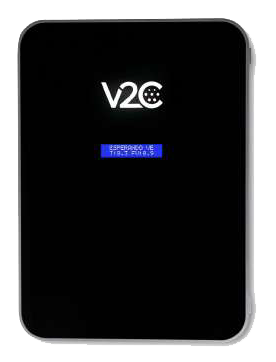
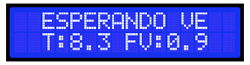
On the Trydan screen, we will be able to see the obtained measurements. You should check that the display measurements match those in the FusionSolar app.
If Trydan fails to connect with Huawei, it displays the message shown in the image. It is possible that some step was not executed correctly.
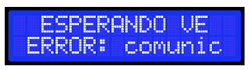
The causes of the communication error may be due to:
- The version of the SDongle is not the latest
- The IP assigned to the inverter is incorrect
- The inverter and the charger are not connected to the same network
- No dongle: Modbus TCP is not enabled or the inverter is not accessible from the home network
Do you need technical support?
Resolve your issue instantly through our AI Chat. If it is not resolved, generate a request in the Technical Support Center and we will contact you as soon as possible to provide you with the best solution.